In short
Shelfcanvas, a free browser image editor, mirrors artwork horizontally or vertically. Preview the result, check the lettering, then save the copy.
| Control | What it changes |
|---|---|
| Flip horizontal | Left and right swap; text reads backward |
| Flip vertical | Top and bottom swap |
| Both | The same result as a 180° turn |
| Reset to original | The source returns before another change |
Key facts
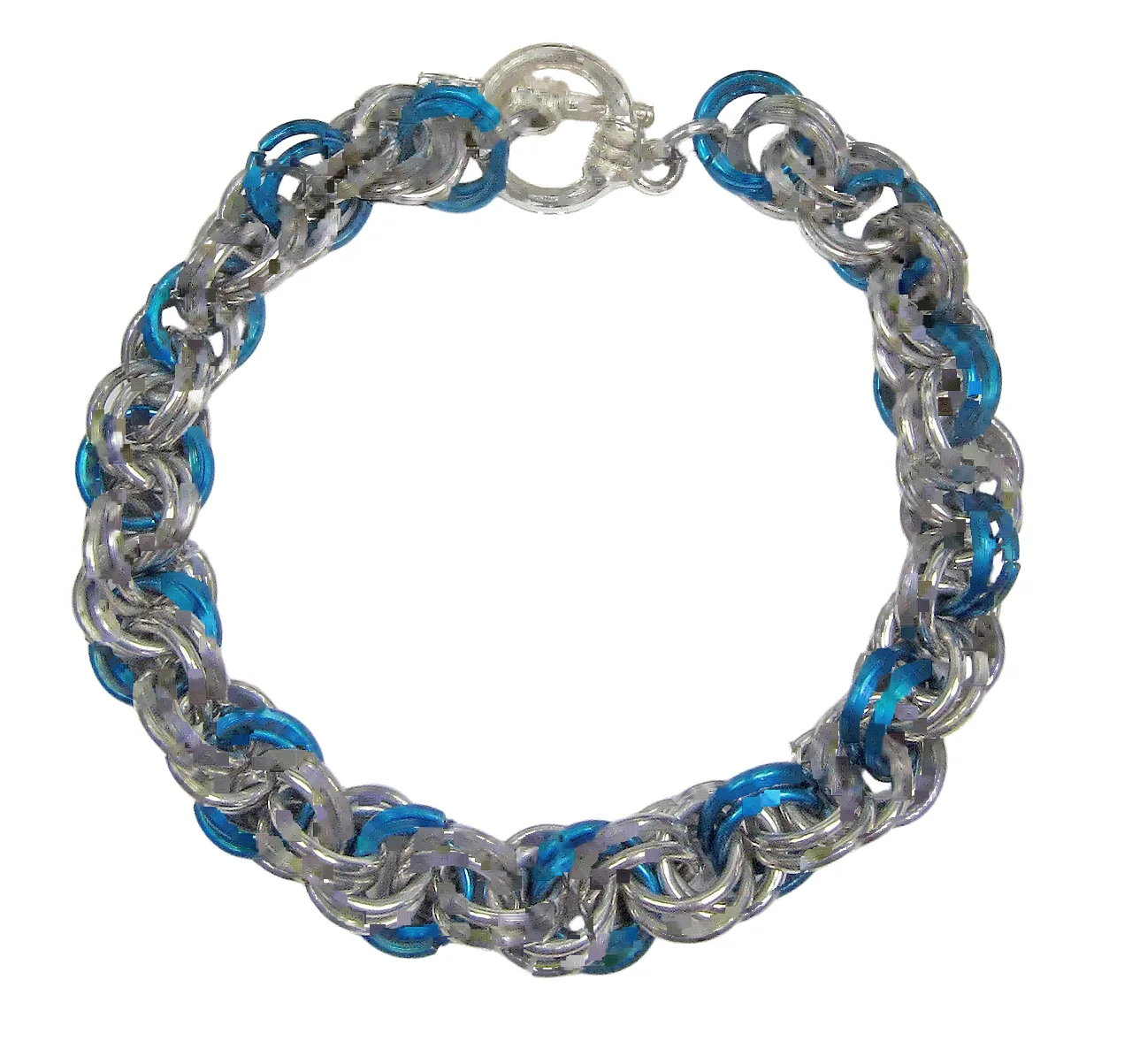
- The flip keeps the pixel size: an 800 × 680 px PNG stays 800 × 680 px.
- PNG transparency is kept, so a transfer design keeps its clear background.
Mirror an image in three steps
- 01
Upload photo
Your design or product photo opens in the preview.
- 02
Choose the direction
Flip horizontal reverses left and right; Flip vertical reverses top and bottom. The applied state appears beside the preview.
- 03
Compare, then Download
Check lettering and product features, then save the mirrored copy. Reset to original restores the source.
A horizontal flip moves a feature on the left to the right; it does not make a portrait photo landscape, and it does not show the back of an object.
Mirror artwork for a heat-transfer workflow
Cricut says most iron-on and Infusible Ink materials need a mirrored design, because they are cut liner-side down. Design Space can also mirror automatically when you choose an applicable material setting, and the mat preview shows that change (Cricut's mirroring instructions, edited 2026-08-11, checked 2026-10-25). Check the final mat before cutting: if the app already mirrored the design, do not upload an artwork copy you mirrored here as well.
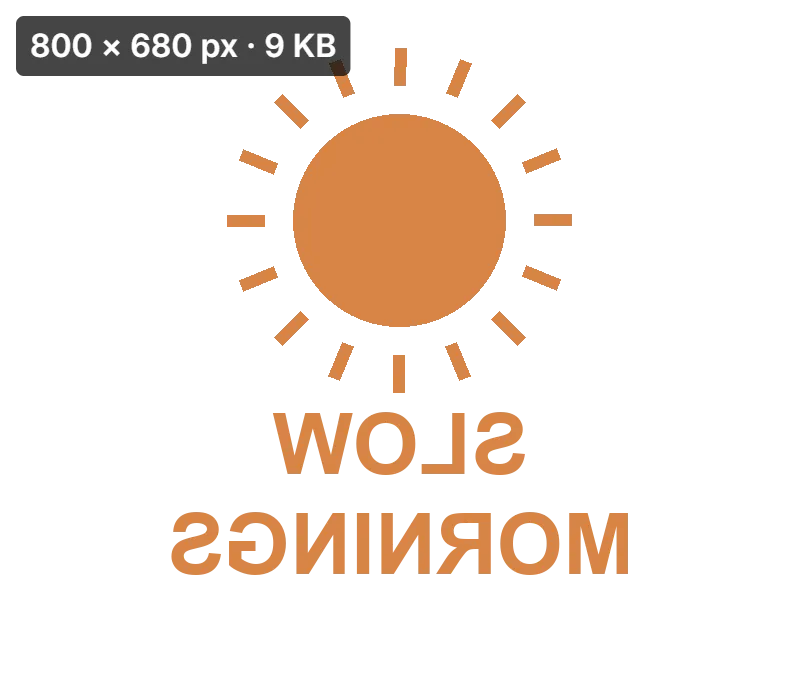
A transfer sheet needs the design reversed so it reads correctly after pressing; a shop listing needs the finished item as a customer sees it. Name the files by stage so the mirrored cut file never ends up in your listing.
| Stage | Check | File to keep |
|---|---|---|
| Artwork before cutting | Read the lettering in the finished direction | Original design |
| Transfer or sublimation layout | Confirm the material or printer calls for mirroring | Mirrored production copy |
| Finished item | Check the print against the real item and SKU | Normal, unmirrored product photo |
For sublimation, follow the instructions for your printer, paper and blank; some print dialogs offer their own mirror setting, so decide which step does it. A window decal applied to the inside of the glass and read from outside is the same idea: mirror the production file only when the finished piece is viewed through its non-adhesive side.
Check a mirrored image before saving
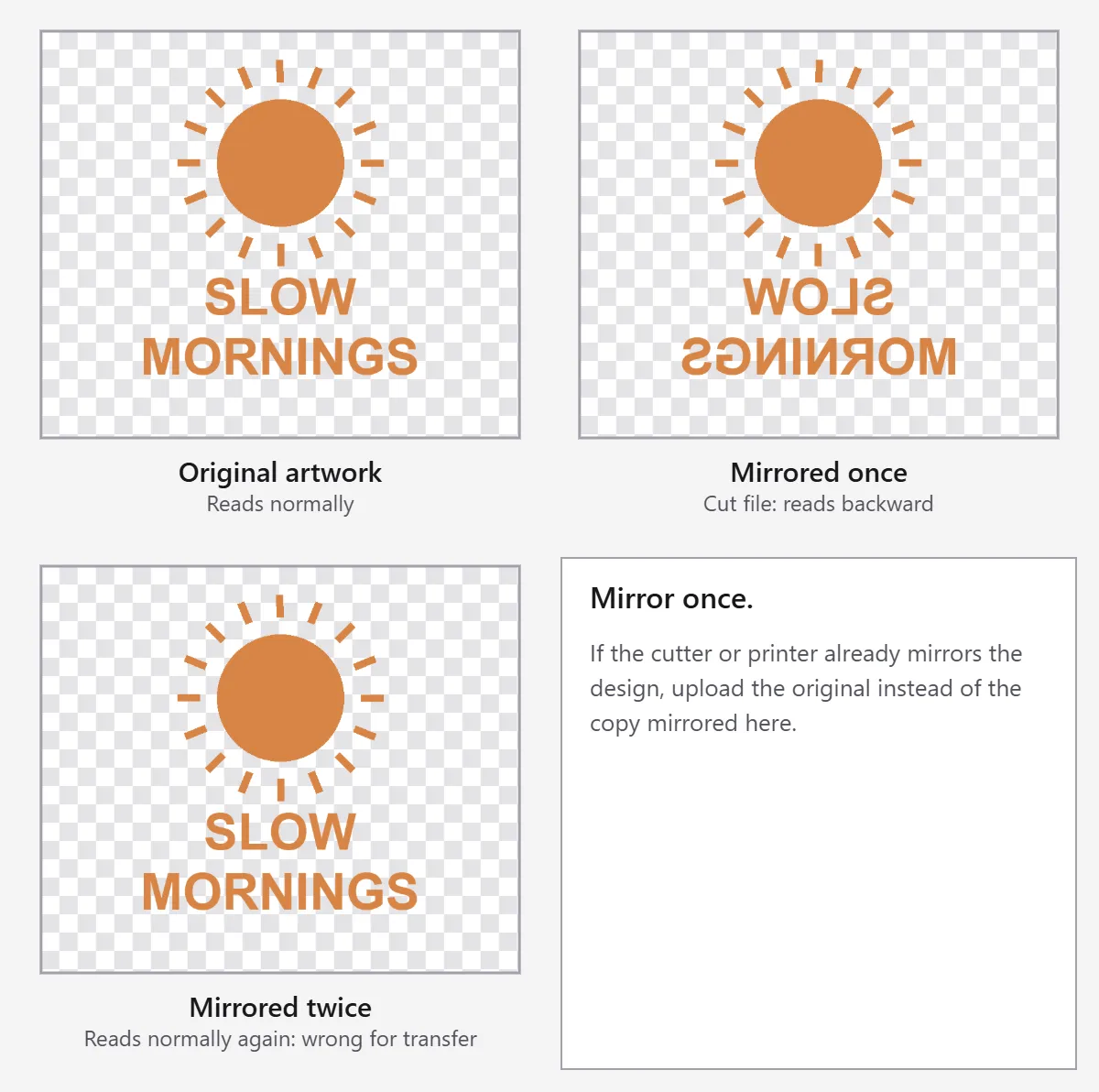
Mirroring twice puts the design back where it started, one common reason a pressed shirt reads backward. Copy this check before you download:
- Is this a transfer file or a finished product photo?
- Does the cutter, printer or material setting already mirror the design?
- Do all words and logos read backward in the preview, and only once?
- Do side-specific details still match the real item?
- Is the file named for its next step (cut file or listing photo)?
Check handedness before mirroring a product photo
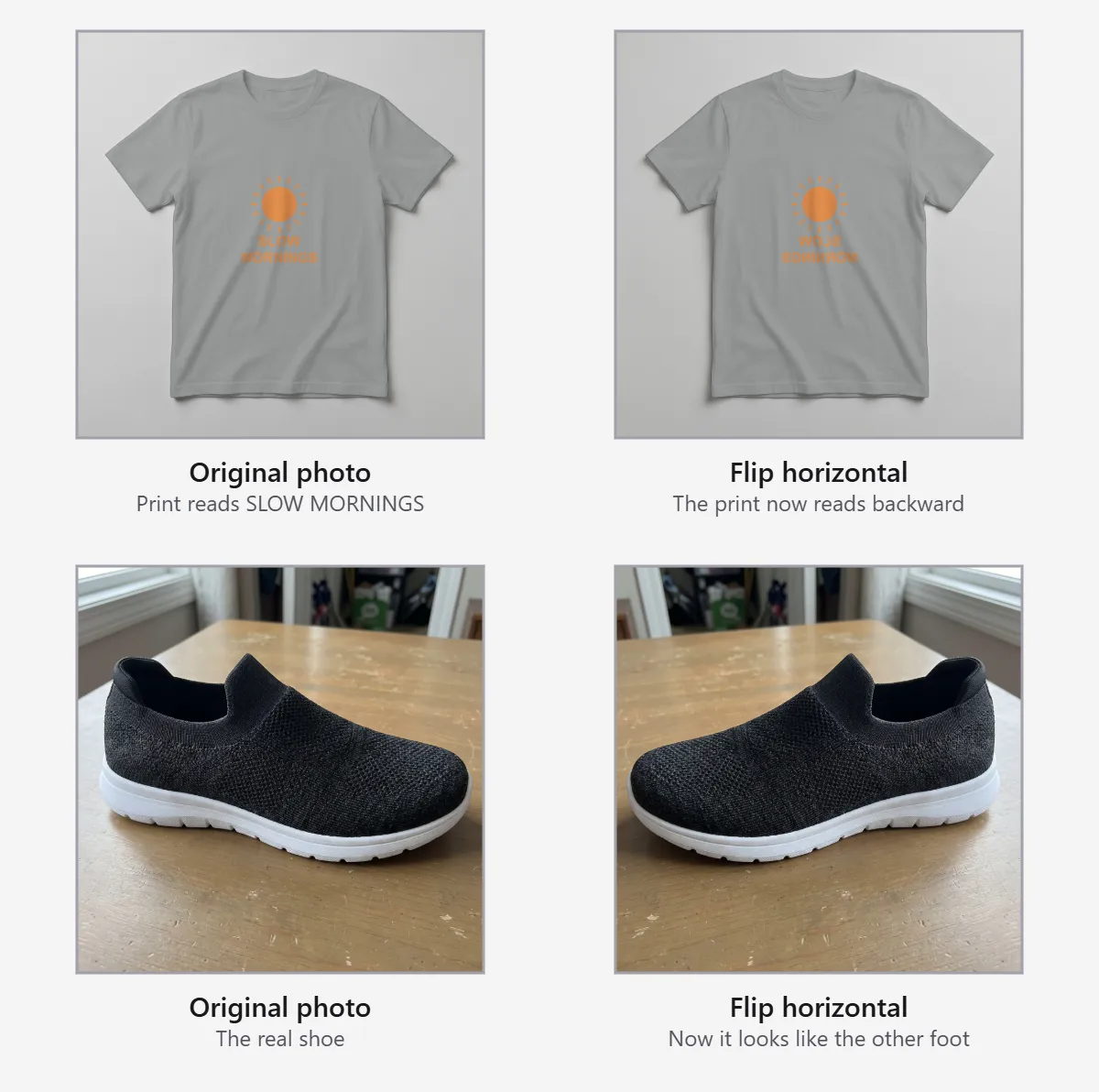
A shoe has a real left or right shape. A watch crown, a shirt placket or a printed slogan also tells buyers which version they get. Reversing the photo changes what those features describe, so compare the flipped view with the actual item and its SKU.
Etsy's listing image rules say photos must accurately represent the item, and most products need an unedited photo of the actual item (Etsy Listing Image Requirements, checked 2026-10-25). Keep the listing photo in its real direction; take a new photo when you need the other side.
| Subject | In a listing | What to compare |
|---|---|---|
| Shoes | Keep the real foot shape | The actual pair |
| Shirt or jacket | Keep the real fastening side | The physical garment |
| Watch | Keep the crown on its real side | The model being sold |
| Logo, print or package text | Keep the reading direction | The original product |
| Unlettered decorative artwork | Mirror freely to balance a layout | Your intended composition |
Restore readable text in a mirrored selfie
Some front cameras save a mirrored photo, so a sign or shirt print reads backward. A horizontal flip restores the lettering, but it also reverses the face, the parting in the hair and every other left-right detail. Read the sign in the preview, then compare one familiar feature before saving.
Sideways text is a different problem: rotate the image instead. The flip tool mirrors the whole photo; it does not rewrite one reversed label in an otherwise correct picture.
Build a reflection from a cutout
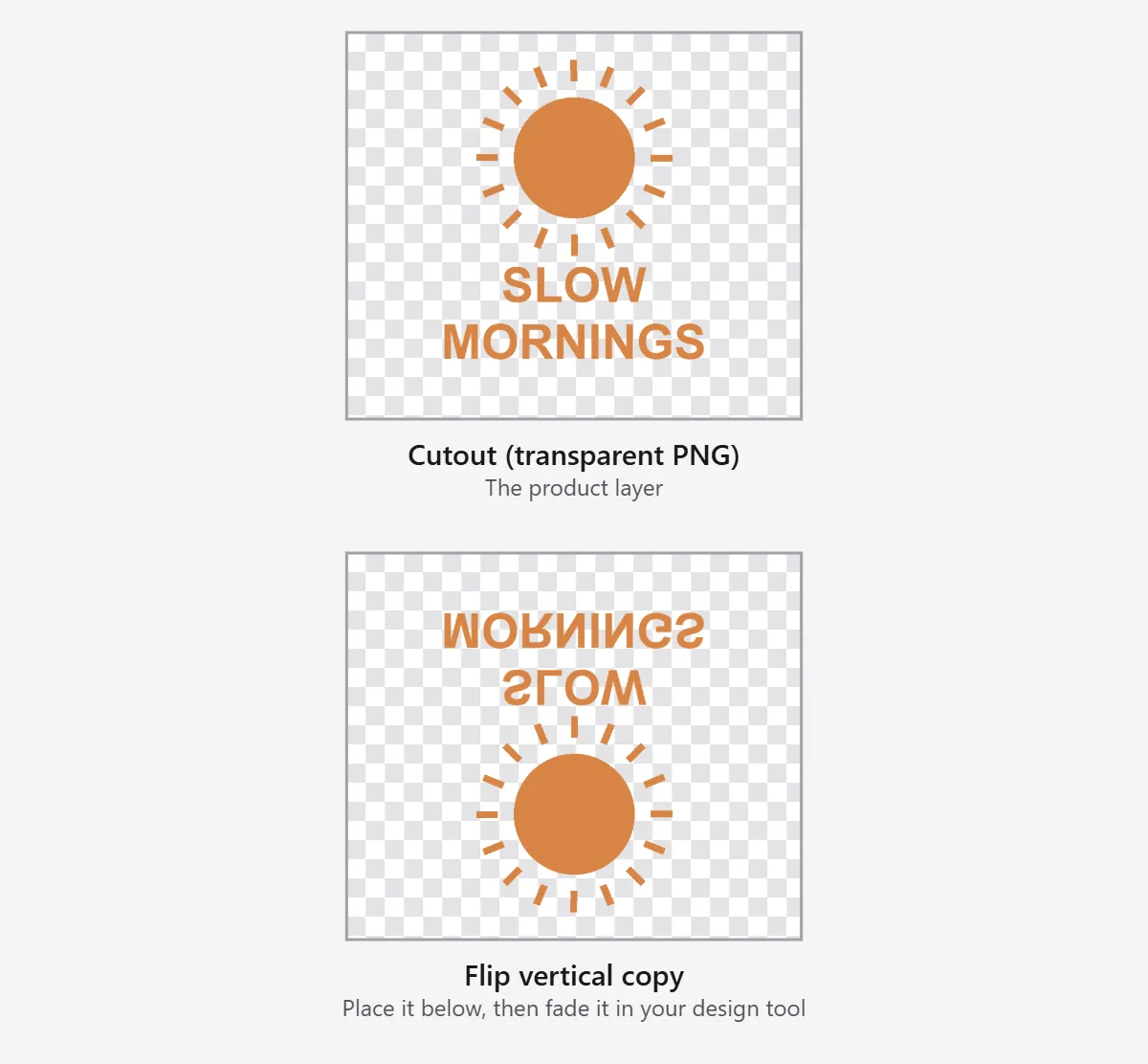
A reflection needs more than a vertical flip. Start with a product cutout on a clear background from the background remover, flip a copy vertically here, then place it under the product and add a fade in your design tool.
FAQ
Use a flipper that keeps the pixel size and transparency and shows each direction separately. Shelfcanvas mirrors one image in your browser for free, with Flip horizontal and Flip vertical as separate controls and a preview before download.
Shelfcanvas does. Each direction has its own control, and the applied state shows which mirror is on before you save.
Usually, yes. Cricut says most of these materials need mirroring, and Design Space can mirror automatically for applicable material settings. Check the final mat preview so the design is mirrored once.
Not necessarily. No universal rule covers every printing workflow. Ask your printer which artwork orientation it needs; screen preparation and the customer's finished view are different stages.
Only if the result still matches the real product. Check the shoe's side, the logo's reading direction and the SKU; mirroring cannot turn one physical version into another.
The camera saved a mirrored photo. Flip horizontal restores the lettering and reverses everything else in the picture too; for sideways text, use rotation instead.
Not on its own. A vertical flip gives you the reversed copy; a reflection also needs placing under the product and a fade, which you add in your design tool.
No. Keep the logo, label and left or right features as they are on the item; use a real photo of the other side if buyers need it.
Only for production files whose material or printer instructions call for it. The photo in your Shopify product media should read the way the customer sees the item.
Only if the image still accurately shows the item. Etsy requires accurate representation and, for most products, an unedited photo of the actual item.
No. This page flips one image at a time.