- Home
- Photo to sticker
Photo to Sticker
Shelfcanvas Photo to Sticker turns a picture of your pet, a person or a product into a die-cut sticker with a white border. Upload a JPG, PNG or WebP photo, press Remove background (1 credit, free account) or Use the whole photo (free), add a caption, and print a Letter or A4 sheet from your browser.
Choose a photo with a clear subject.
No photo handy? Try one of these
Click to open it in the editor- UploadOne photo with a clear subject.
- Cut it outRemove the background, or keep the whole photo; a white border is added.
- Print a sheetAdd text, fill a Letter or A4 page, download.
In short
Photo to sticker on Shelfcanvas takes three actions: Upload photo, Remove background, then choose a White border width. The white border comes in Thin, Medium or Thick, which is 2.5%, 4% or 6.5% of the sticker's longer side, with Medium as the default. Photo stickers print at 2 in (12 per sheet), 1.25 in (30 per sheet) or any custom width from 0.5 to 7 in. Background removal runs on Shelfcanvas servers and uses 1 credit with a free account; in a test run on October 22, 2026, the cutout opened in the editor 13.3 seconds after the click. The border, caption, sheet layout and the PDF, transparent PNG and ZIP downloads are made in your browser, so those steps cost nothing.
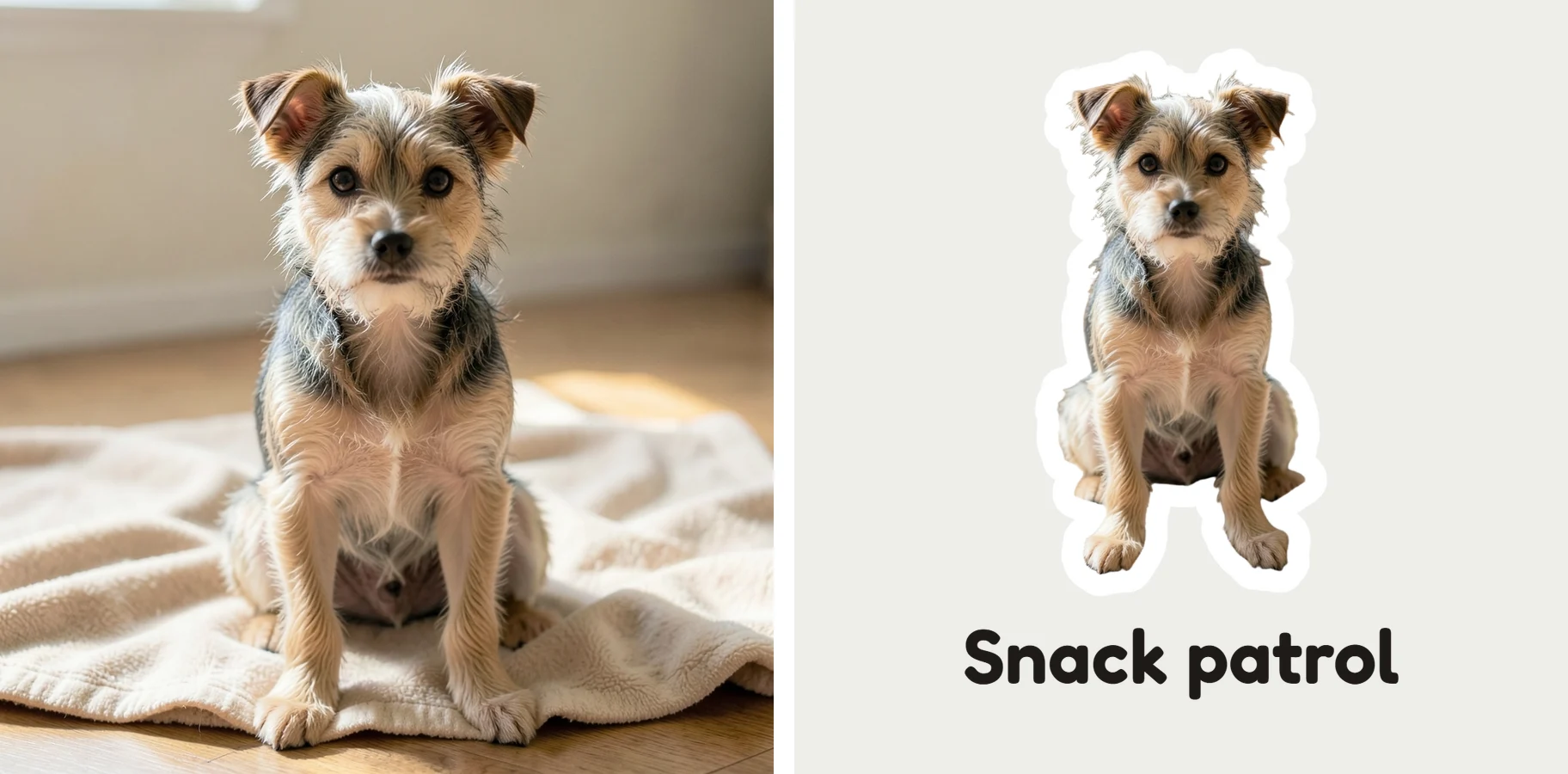
How to turn a picture into a sticker
- 01
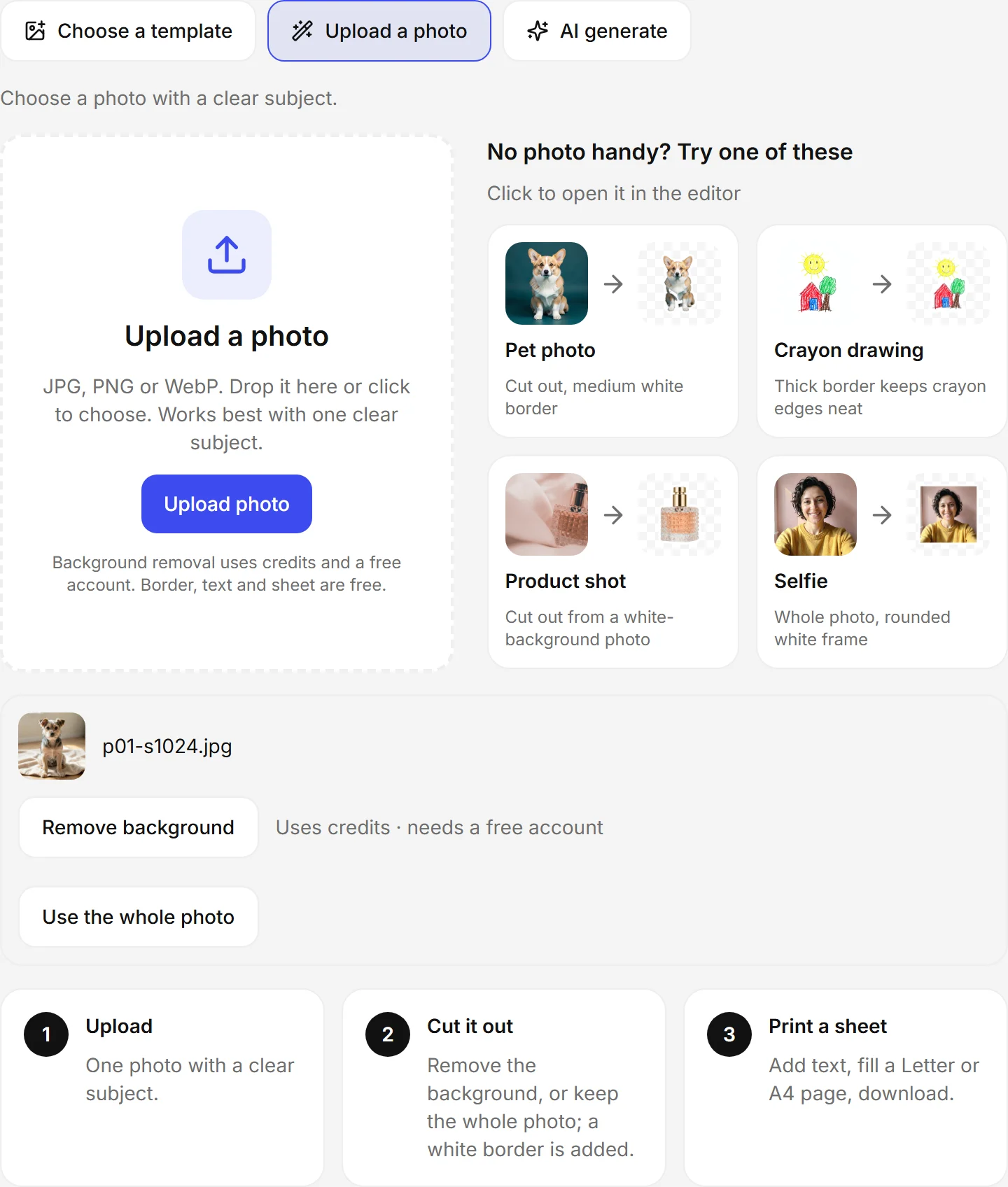
Upload a clear photo
Press Upload photo and choose a JPG, PNG or WebP picture with one clear subject, such as a corgi sitting in front of a plain wall.
- 02
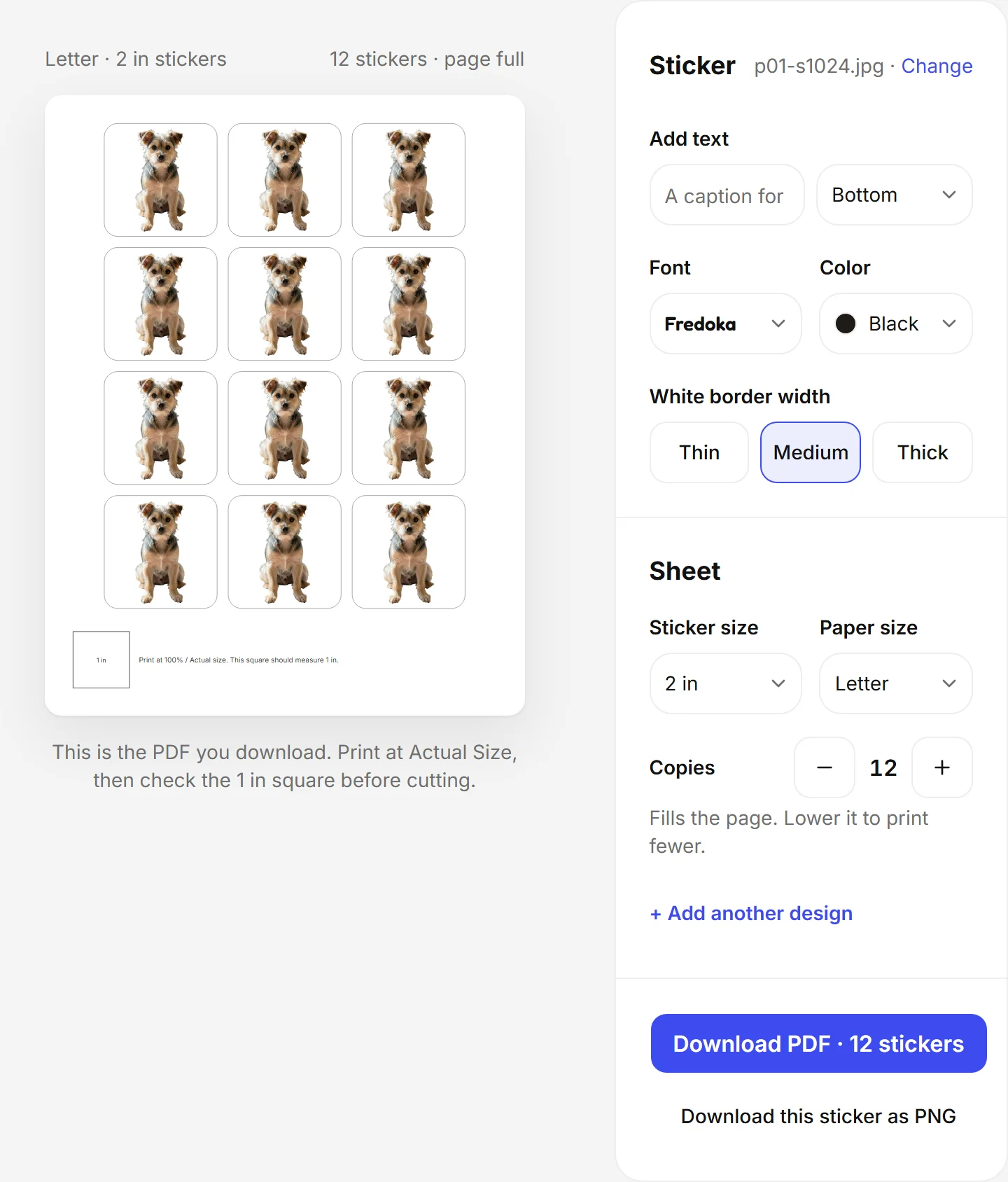
Cut out the subject
Press Remove background to cut the subject out, or Use the whole photo to keep the full picture inside a rounded white frame. Look around the outline before going on.
- 03
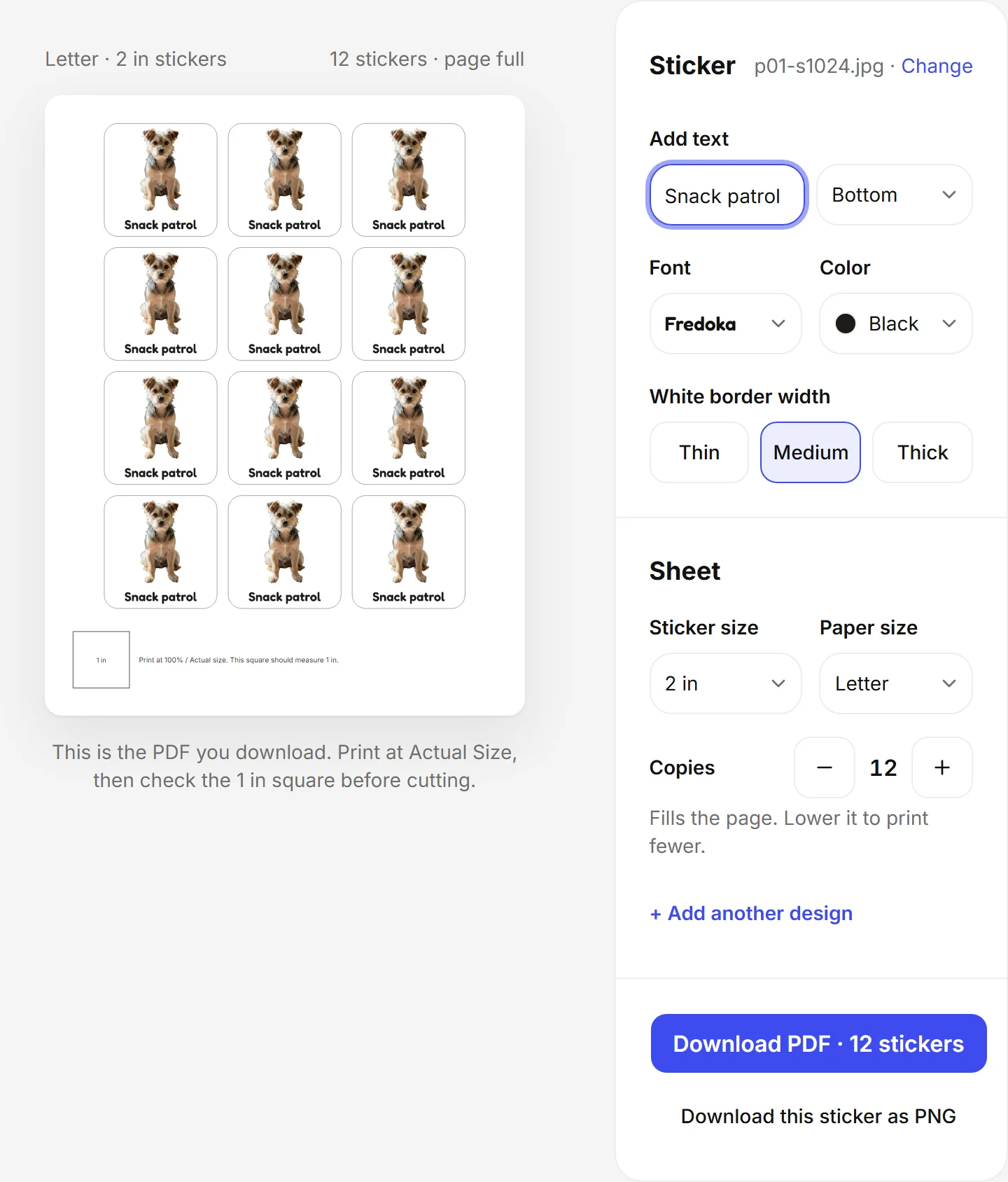
Choose the white border
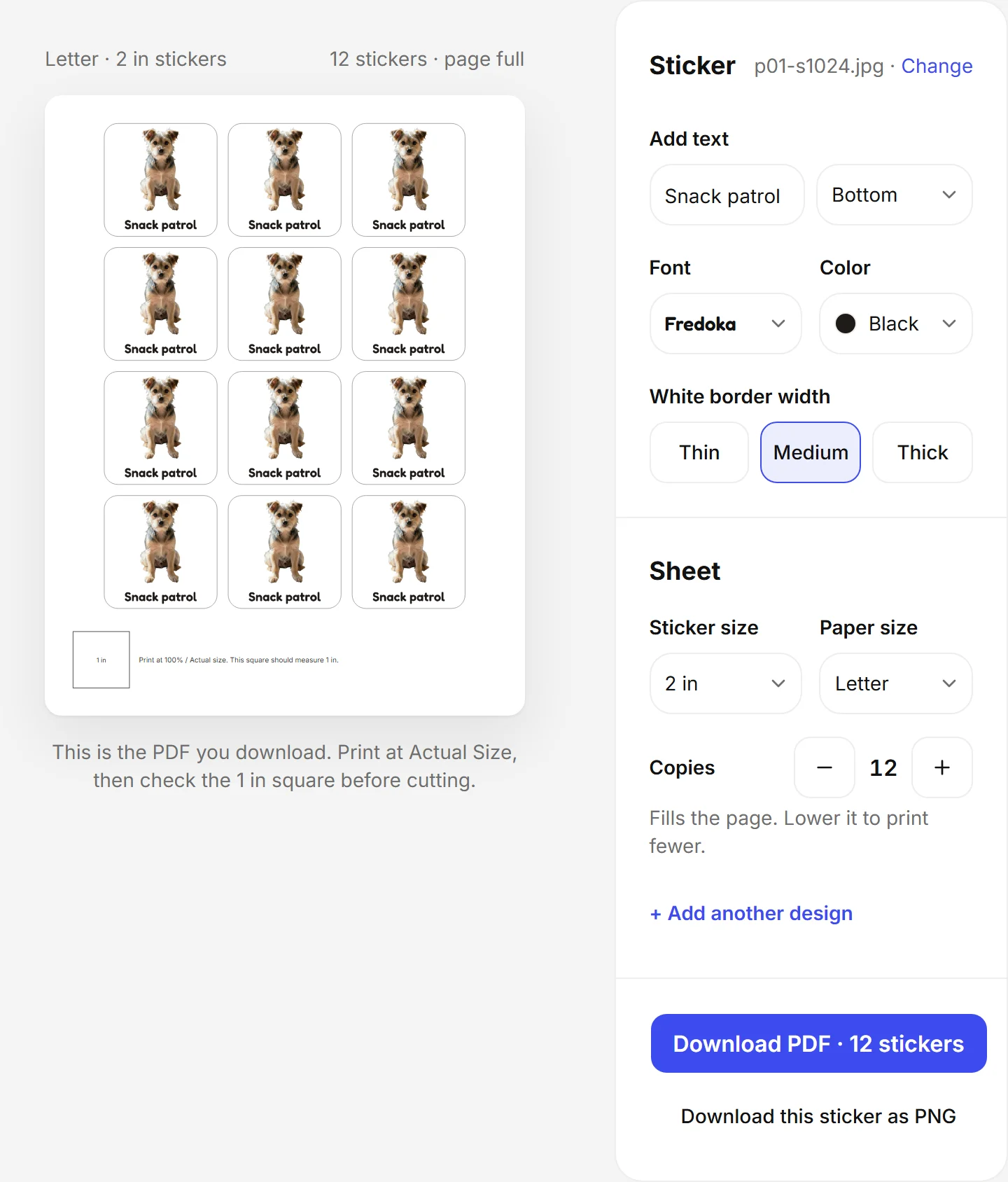
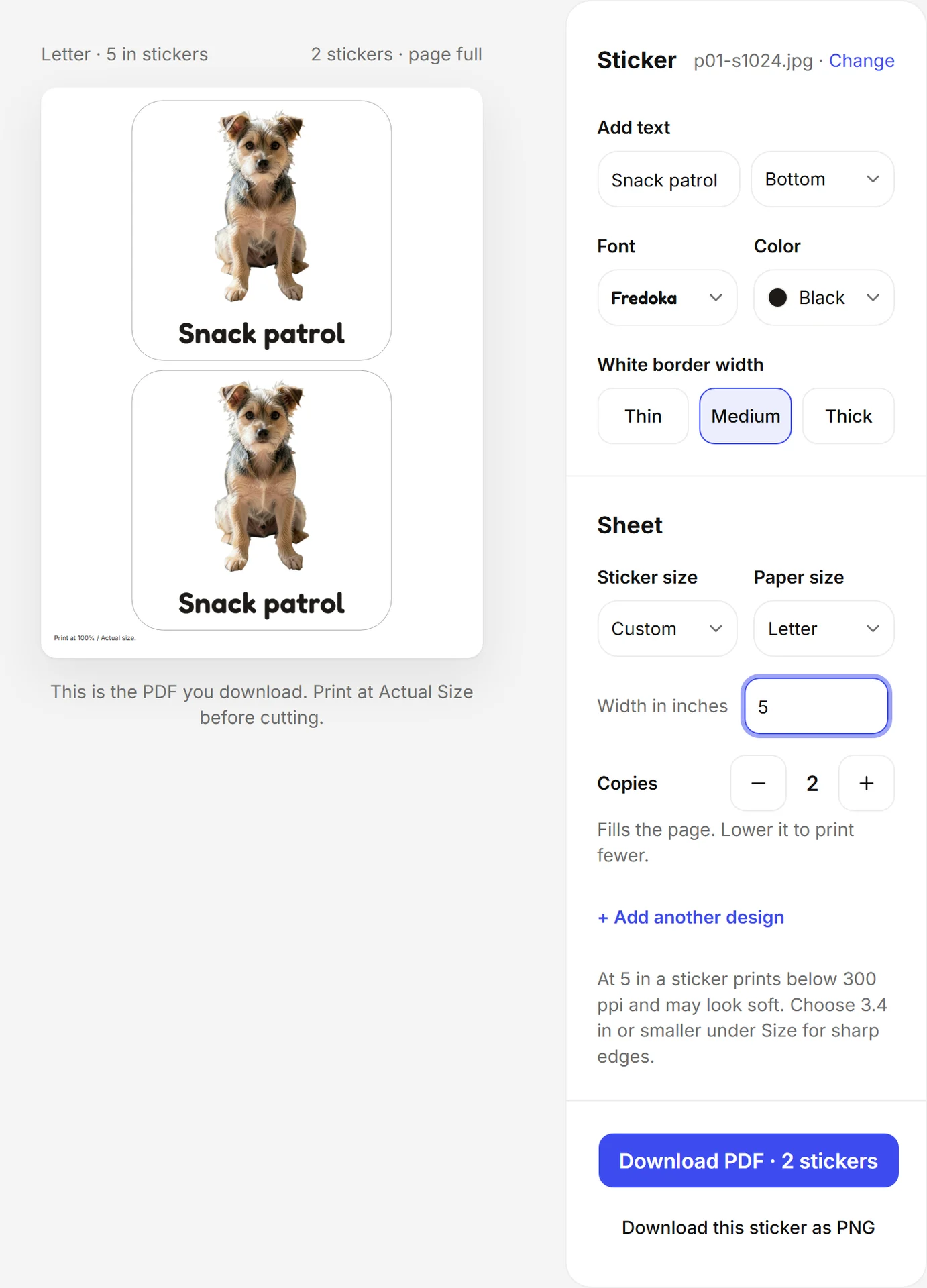
Under White border width, choose Thin, Medium or Thick, then type a caption such as “Snack patrol” under Add text.
- 04
Lay out and download
Pick Letter or A4 under Paper size, then press Download PDF for the sheet. With one design, download its PNG; with multiple designs, choose All PNGs to download a ZIP.
Pet photo stickers with recognizable faces
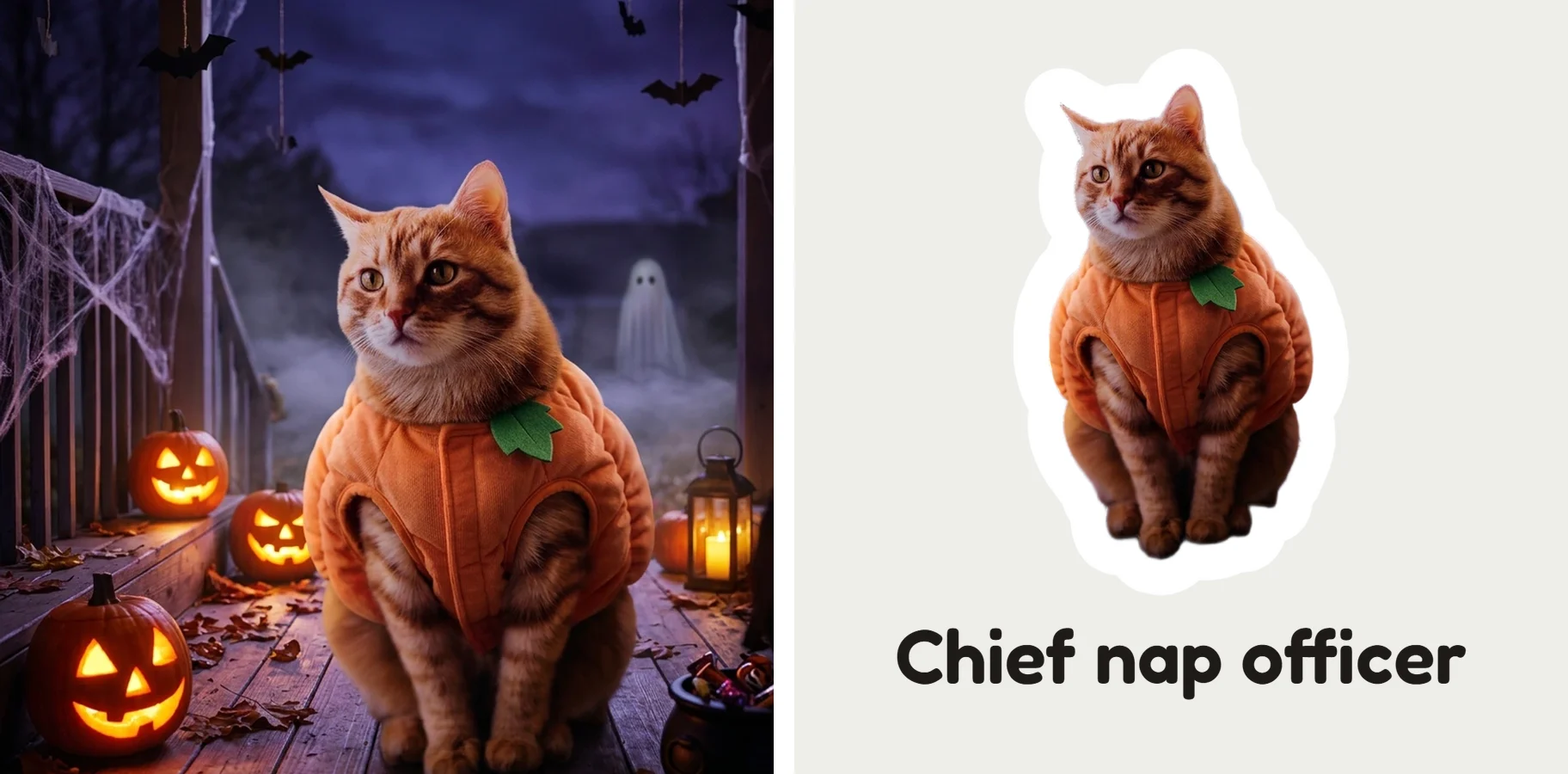
Pet photo stickers work best from the picture that captures your pet's personality: the tilted head, the sleepy loaf pose or the patient look beside an empty bowl. A clear face and a complete silhouette help the sticker remain recognizable after the room around it disappears.
Check fur, ears, whiskers and the space between the legs. A long-haired animal against a similar-colored blanket can have an ambiguous edge. If the cutout loses an important part, try a photo with stronger separation between the pet and its surroundings.
A Thick white border can give a fluffy outline a calmer outer shape. Keep enough detail inside it to recognize the face; avoid making the pet so small that only the outline is visible. Try “Chief nap officer,” “Snack patrol” or “Official blanket tester” as original captions.
For a journal, keep the expression large enough to see beside your handwriting. For a gift, compare a paper sample with the actual bag or box. The same photo may need a 2 in sticker for one use and a 1.25 in sticker for another.

Portrait stickers for friends, family and parties
Portrait stickers need a photo with a readable expression and clear space around the head. Hands, hats and loose hair can add character, but inspect them after background removal. A photo cropped through the hair or a raised hand cannot supply the missing part of that outline.
Use the caption to explain the moment. “Here for the cake,” “Weekend committee” and “Best day crew” work as small party keepsakes. A portrait sticker can also mark a page in a family journal or personalize a paper gift bag.
For a group photo, consider whether the faces will still read at the final size. A closely framed pair is often easier to understand than a distant crowd. Choose a different source photo if people overlap in a way that makes the cutout hard to follow.
Inspect the face as well as the edge. The source picture should already have the expression and detail you want, because Shelfcanvas Photo to Sticker keeps the real photo and does not redraw a portrait as a cartoon.
Product photo stickers for packaging and thank-you notes
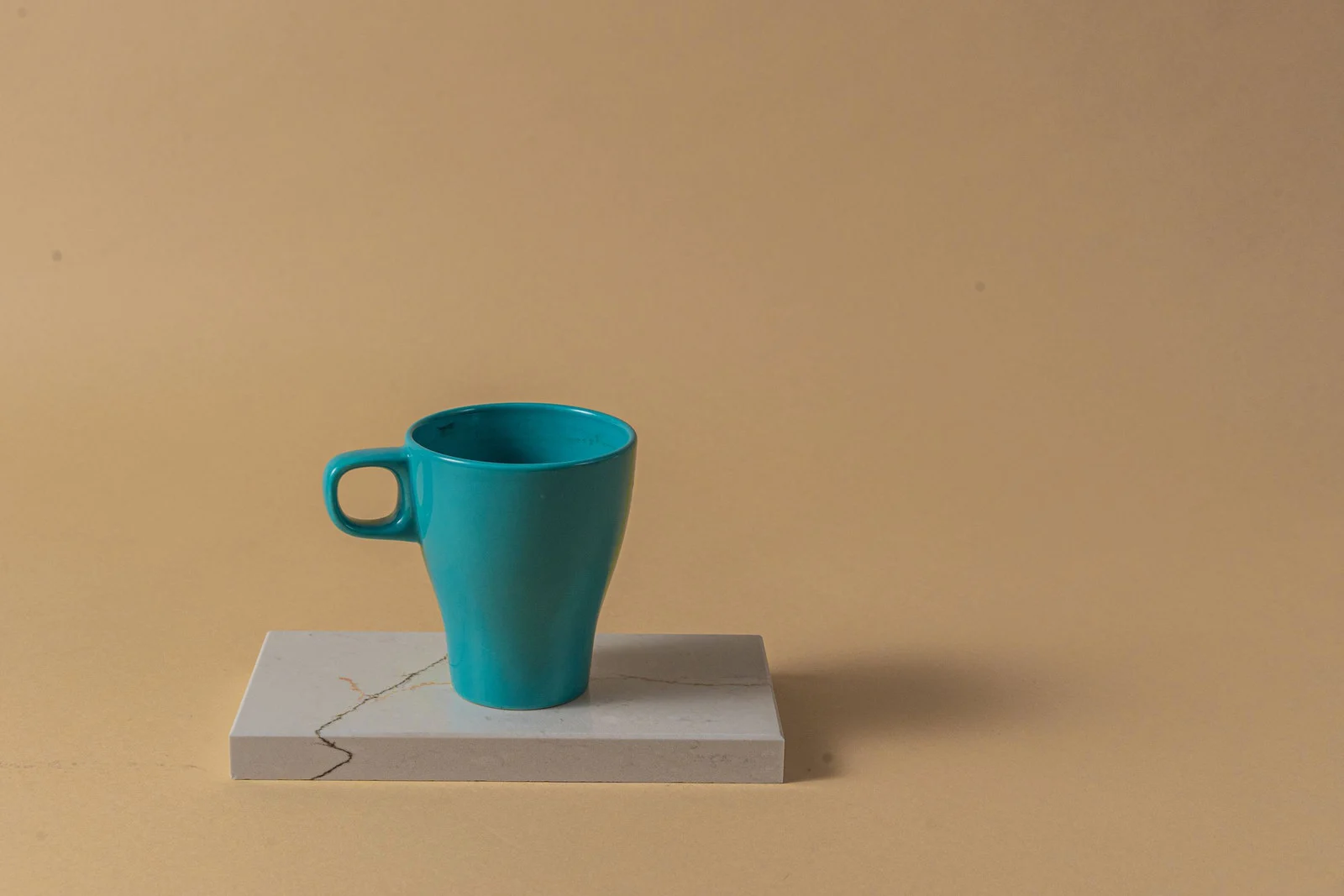
Product photo stickers help when the item itself can identify the parcel: a handmade cup, a knitted accessory or a small plant. Choose an angle with a clear outline so the picture still makes sense without the table or backdrop.
Transparent glass, fine chains and pale objects against pale backgrounds need a close look. Check openings, handles and narrow parts before building the sheet. A white border can frame a good cutout, but it cannot restore a product detail removed with the background.
Add a short message such as “A little handmade happiness” or “Packed for your next cozy day.” Keep detailed product information separate from the decorative picture when a small sticker would make it hard to read.
For a series of packaging stickers, choose source photos with similar framing and the same border width. If your product shots need a clean base first, the white background tool puts the product on pure white. Use the sticker maker for more thank-you wording and packaging layouts.
Which photos make the best photo stickers?
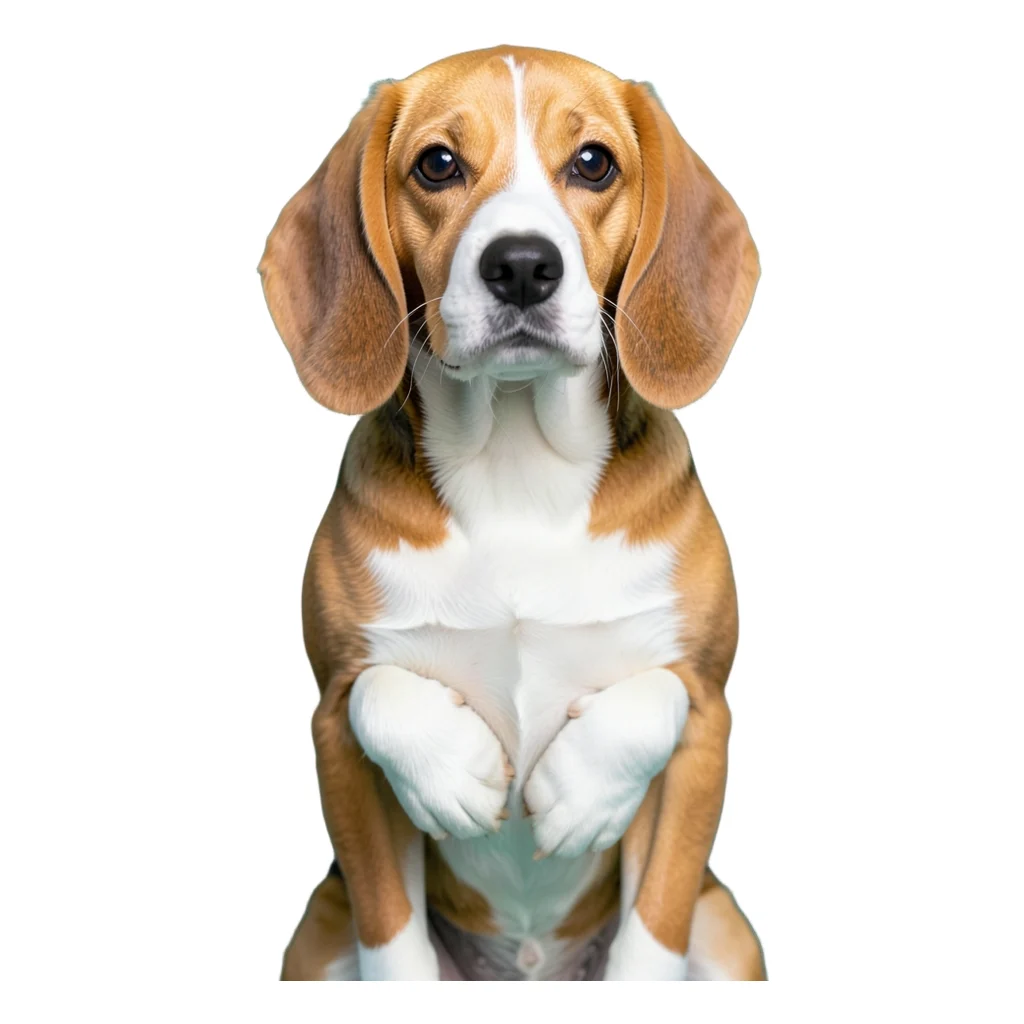
The best photo stickers come from pictures with a visible boundary between the subject and its background. An evenly lit photo against a plain, contrasting surface is a useful starting point. Busy patterns, strong shadows joining the subject to the table, or objects touching the edge of the image can make the outline harder to interpret.
Keep the source image with the detail you need. Shelfcanvas exports each photo sticker at 1024 × 1024 px, so a photo with at least that much detail around the subject prints cleanly; a tiny screenshot may look acceptable in a small preview but show jagged edges when printed. Changing the export format does not put missing texture back into the original photo.
Before uploading, decide which parts belong in the sticker. A pet's full body, a head-and-shoulders portrait and a close-up product each need different framing. Choosing the right source photo is easier than trying to make an unsuitable scene fit a small design.
After the cutout appears, inspect both enclosed spaces and the outside edge. Handles, gaps between arms and spaces between leaves are easy places to miss a leftover patch of background.
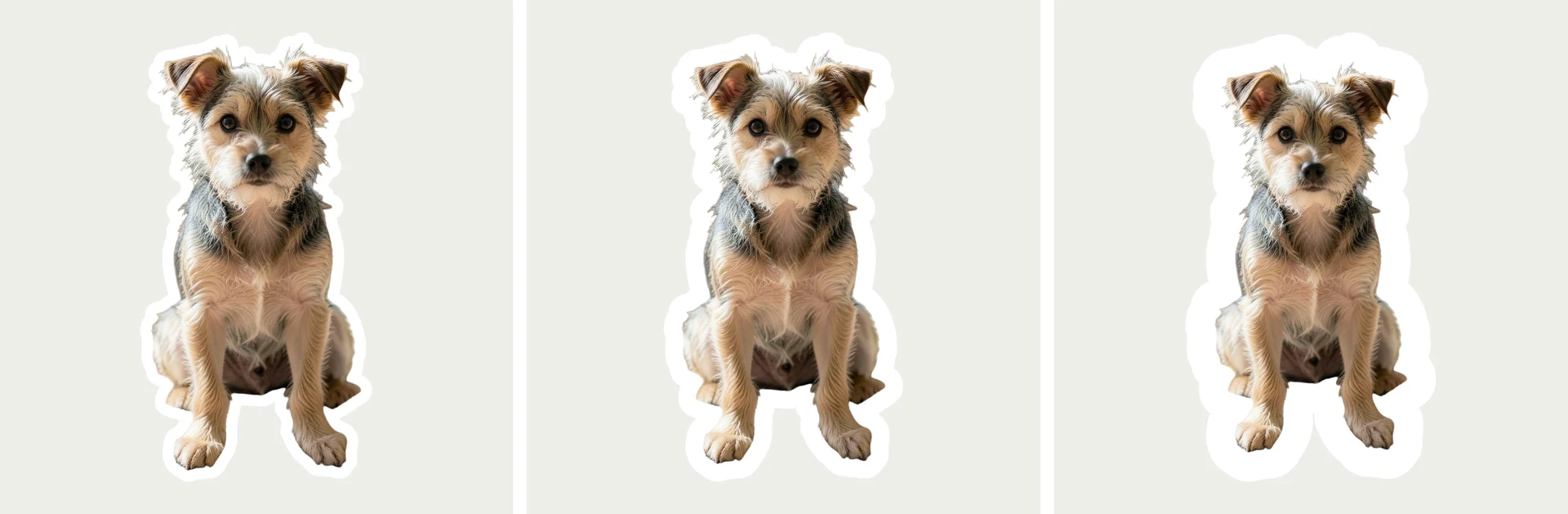
How much white border should a photo sticker have?
A photo sticker's white border should match the outline and the surface where the sticker will go. Thin keeps attention on a simple subject; Thick gives a busy silhouette more visual separation and leaves a more forgiving area for hand cutting. Medium, the default, sits at 4% of the sticker's longer side.
| Photo or use | Border width to try | What to inspect |
|---|---|---|
| Clear product shape on plain packaging | Thin (2.5%) | Product edges remain distinct from the wrapping |
| Fluffy pet or loose hair | Thick (6.5%) | Small edge details do not make the silhouette look ragged |
| Portrait on a patterned notebook | Thick (6.5%) | The face stays separate from the pattern |
| Small journal accent | Medium (4%) | The photo remains visible inside the outline |
| Hand-cut favor sticker | Medium or Thick | Scissors can follow the outside without clipping the picture |
Use these as visual starting points, then check a paper sample. A border that looks generous at screen zoom can feel much smaller in your hand. If you widen it, make sure the subject still has enough space to remain recognizable.
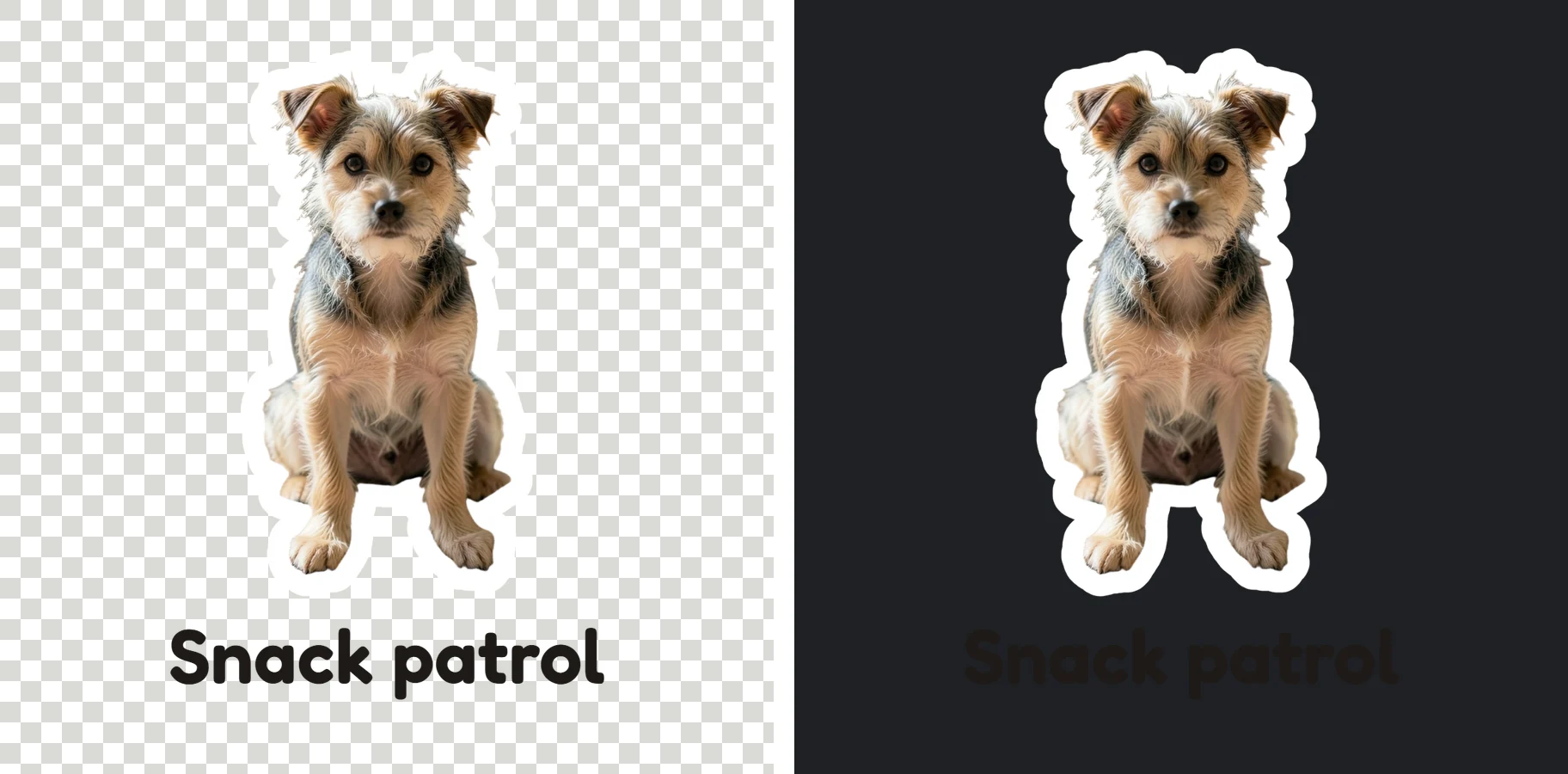
The white border is intentional artwork around the photo. The area beyond it is transparent in the PNG, so you get both a white sticker outline and a transparent file background.
Check the die-cut outline before adding it to a sheet
The die-cut outline is worth checking edge first, then inside the shape. Check whether the cutout kept the subject's important details and removed unrelated objects. A chair touching a person's shoulder or a blanket under a pet may look like part of the subject to automatic background removal.
If the edge is wrong, choose a clearer source photo. A wider border can make a sound silhouette easier to see, but it also follows an incorrect silhouette. It will not bring back a missing ear or remove a large piece of furniture that remained attached.
Check the caption next. Leave it clear of the face or the product feature that makes the picture meaningful. Read the words at the intended size, then check the spelling in the downloaded output.
Finish with a paper test of the whole sheet. Review the gap between neighbors, the outer paper edge and the space your cutting method needs. Fix the layout before moving to the final stock.
Print photo stickers on Letter or A4 paper
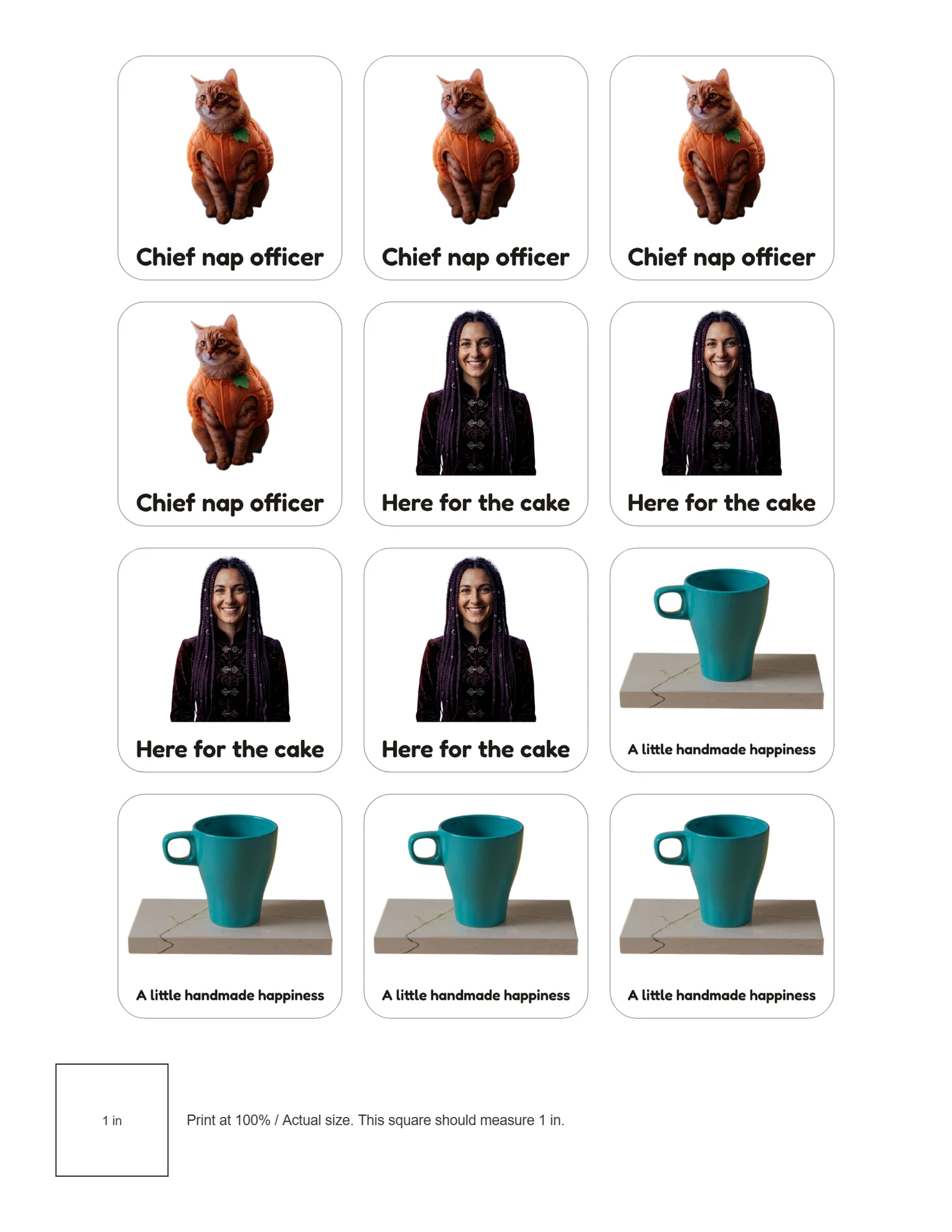
Photo stickers print on Letter or A4: pick the paper size you will load into the printer, and Shelfcanvas keeps a 0.5 in margin and at least 5 mm between stickers. Download the PDF when you want to preserve the sheet layout, the grey cut lines and, if the PDF has one, the calibration square. Use full-sheet sticker stock when you plan to cut your own outlines.
Print at Actual Size or 100%. If the PDF has a calibration square, measure it: it should be 1 in on Letter or 25 mm on A4. Compare a sticker with the surface it will decorate. Avery recommends an unscaled print and a plain-paper test in its printing tips, checked October 22, 2026.
Choose stock marked for your inkjet or laser printer and follow its loading instructions. Avery explains the material distinction in How to Print Labels, checked October 22, 2026. The paper choice also affects the finish of the printed photo.
Cut a sample before printing the whole project on sticker stock. If the border feels awkward around a complicated shape, adjust the sticker size or border width and try that area on plain paper again.
Use photo stickers with Cricut Print Then Cut
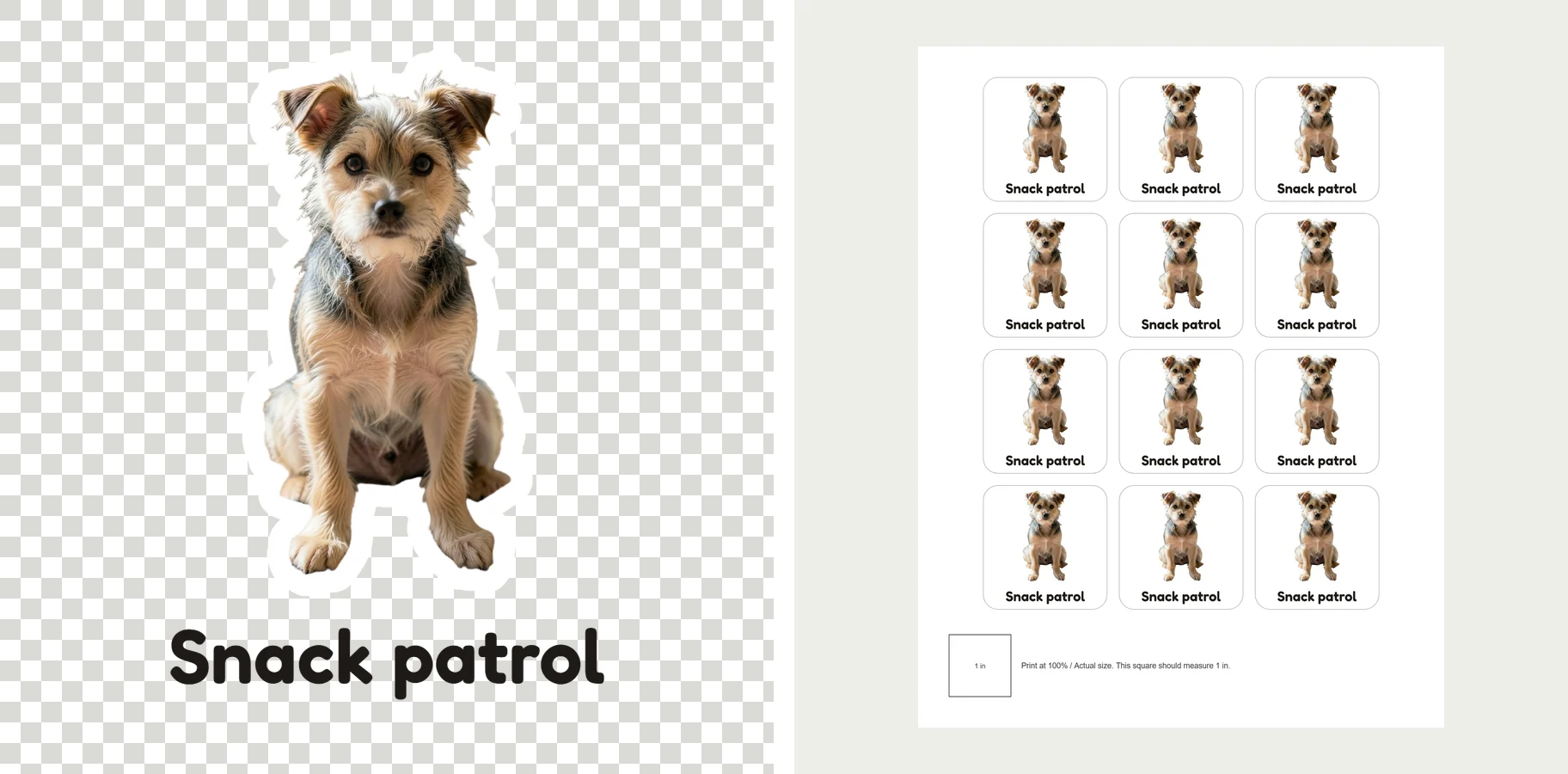
Photo stickers go to Cricut as PNG artwork: download the transparent PNG and import it into Design Space. Set the printable design up there and print through that workflow, which supplies the sensor marks for the cutter. Follow Cricut's official Print Then Cut guide, checked October 22, 2026.
Keep the PNG artwork for this handoff; the PDF's cut lines and calibration square (if the PDF has one) are hand-cutting aids. Design Space prepares its own machine-readable layout. Its print preview is where you check the design's size and placement for that project.
For a hand-cut sheet, use the PDF directly. For a Cricut project, continue from the artwork inside Design Space. Choosing the route before printing saves you from preparing a sheet for the wrong cutting method.
Fix soft prints, crowded sheets and rough sticker edges
The whole sheet looks too small: check the print dialog's scaling. Fit-to-page can shrink a correctly sized PDF. Use Actual Size and, if the PDF has a calibration square, measure it.
Only the outside is clipped: leave more room inside the printer's printable area and check that the selected paper format matches the loaded stock.
The subject looks soft: return to the clearest available original, or choose a smaller Size. The editor warns when a custom width would print below 300 ppi.
The white border looks uneven: inspect the cutout it surrounds. Try a clearer photo if background fragments or missing details changed the outline.
The sheet is difficult to cut: lower Copies or pick a smaller Size so neighbors sit further apart, and simplify complicated shapes.
FAQ
Shelfcanvas, a browser-based photo-to-sticker editor, removes the background of your photo and adds an even white die-cut border in one flow. Background removal costs 1 credit with a free account; the Thin, Medium or Thick border, the caption, the Letter or A4 sheet and the PDF, PNG and ZIP downloads are free.
Yes. Choose Use the whole photo and Shelfcanvas turns the full picture into a sticker with a rounded white frame for free, with no account. To cut the subject out of its background, Remove background uses 1 credit and a free account. Eligible new accounts receive up to 3 credits.
Yes. The photo-to-sticker workflow cuts your pet out of the uploaded picture itself. Choose a clear image, inspect the fur and ears, then add the white border and a caption.
No. A thicker sticker border follows the cutout shape. Try a clearer source photo when an important part of the subject is missing.
The white border is part of the photo sticker design. Transparency belongs outside that border, allowing the artwork to sit on another background without a rectangular photo backdrop.
Not from a photo. Photo to Sticker keeps your real picture: it removes the background and adds a border without redrawing faces. For a drawn look, start from a template in the same editor instead of a photo.
Photo stickers on Shelfcanvas print at 2 in by default, which fits 12 on a Letter or A4 sheet, or at 1.25 in, which fits 30. You can also enter a custom width from 0.5 to 7 in under Size.
No. For Cricut, export the PNG sticker artwork, import it into Design Space, and print the Print Then Cut project there. The sticker PDF is for printing and hand cutting.
Check the paper format, the Actual Size setting, the calibration square (if the PDF has one), caption size and room for cutting on a plain-paper test. Then follow the instructions for the sticker stock and printer.
Yes. Choose a template in the same editor. The sticker maker has ideas for packaging, classroom rewards, parties and journals.
sticker maker