In short
Shelfcanvas, a free browser image cropper, keeps the area you select without stretching the product and shows the remaining pixels before you save.
| What the panel shows | Where it comes from |
|---|---|
| Selection position (x, y) | Where your frame sits on the original |
| Selection width × height | Pixels inside the frame |
| Ratio | Free, 1:1, 4:5, 3:2, 16:9 or Circle |
Key facts
- In our measured sample, a 640 × 640 px detail crop from a 2048 × 2048 px photo saved at 68 KB.
- Circle crops download as transparent PNG, with no white box around the logo.
- You can type the crop as X, Y, Width and Height instead of dragging.
Crop an image online in three steps
- 01
Upload photo
The frame opens over the whole image with its pixel size showing.
- 02
Choose a ratio and move the frame
Pick Free, a preset ratio or Circle, then drag the frame or its handles. Use the arrow keys to nudge it, or type exact values in X, Y, Width and Height and press Apply crop.
- 03
Save crop
Download saves the selection. Save and crop again keeps the original ready for another crop.
Give the product more room in the frame
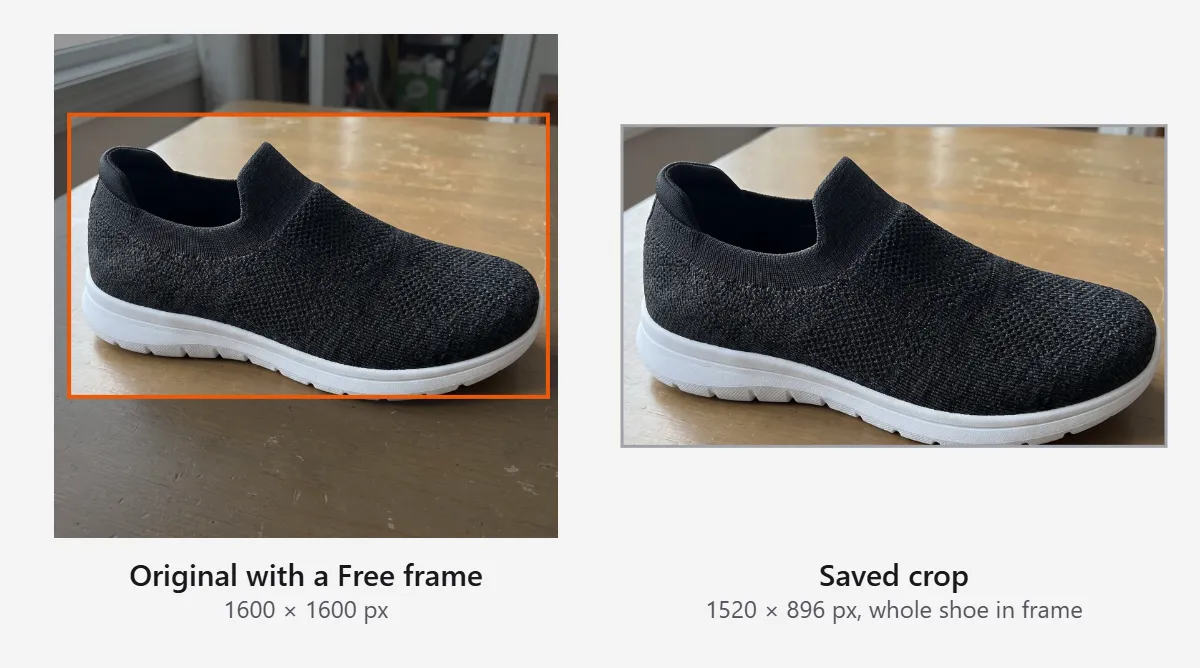
A product that fills a small corner of the photo looks lost in a search grid. Crop closer so the item becomes the subject of the thumbnail. Move only the crop boundary and compare: a tighter frame reads better at thumbnail size until it cuts into the item. The crop tool shows the selected area; it does not measure how much of the frame the product fills or certify a listing.
Turn one high-resolution photo into detail images
One high-resolution photo can supply separate images of a zipper, strap stitching and leather grain. Frame and save the zipper, press Save and crop again, then frame the stitching; the readout shows each crop's pixel size.
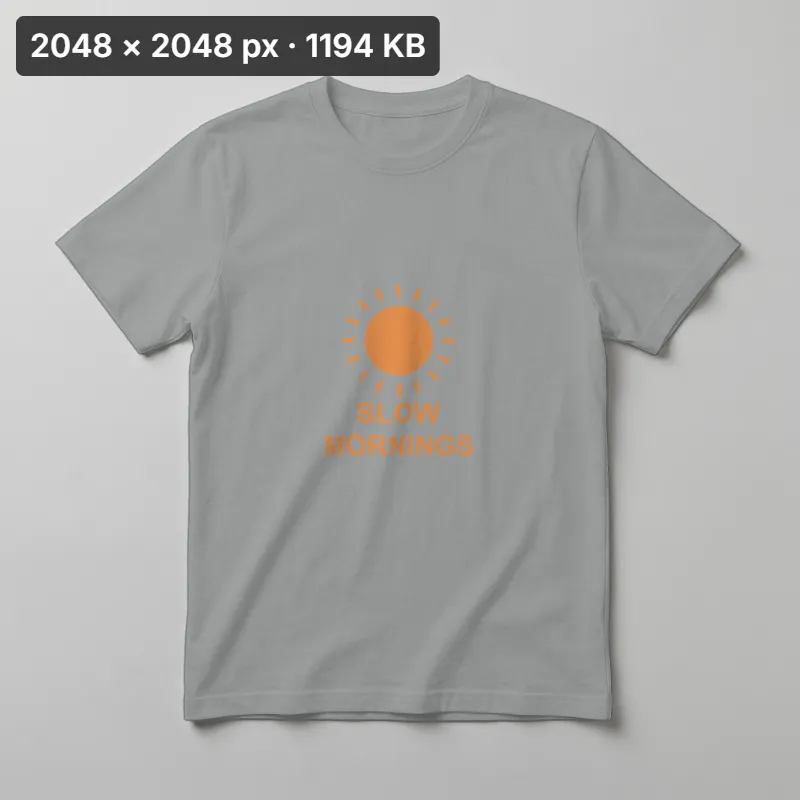
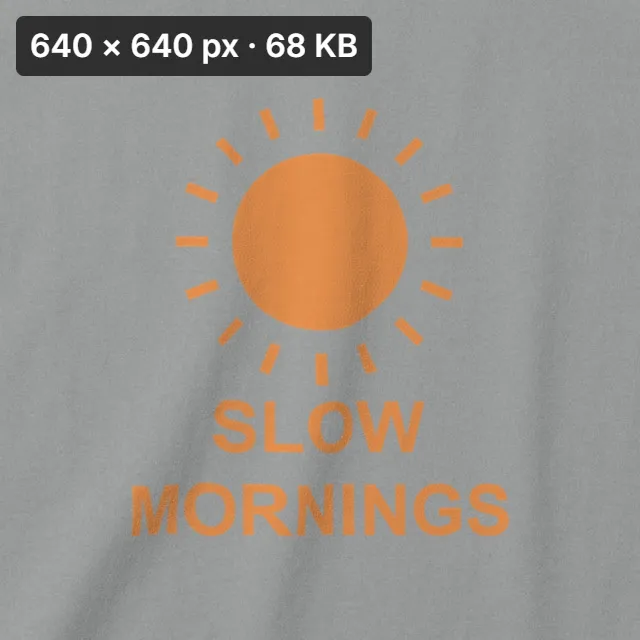
A detail crop holds only the pixels captured in that area, and the file's overall size does not tell you how many pixels the zipper occupies. When the count is low, show the detail smaller, photograph it separately, or enlarge it with the AI image upscaler.
Crop detail table
| What to record | Why it matters |
|---|---|
| Original pixel size | The ceiling for every crop from this photo |
| Selection pixel size | What the saved image actually contains |
| Intended use (main photo, detail, icon, print) | Decides the ratio and how much margin to keep |
| Enlargement needed? | A small crop shown large needs the AI upscaler or a reshoot |
Split a group photo into separate product views
Shot the whole color range in one picture? Frame each item in turn and save it as its own image, so every variant gets a photo. Check each frame's edges for a neighboring handle or part of another item. If products overlap, take separate photos; the cropper selects areas, it does not detect products.
Image cropper ratio presets: 1:1, 4:5, 16:9 and more
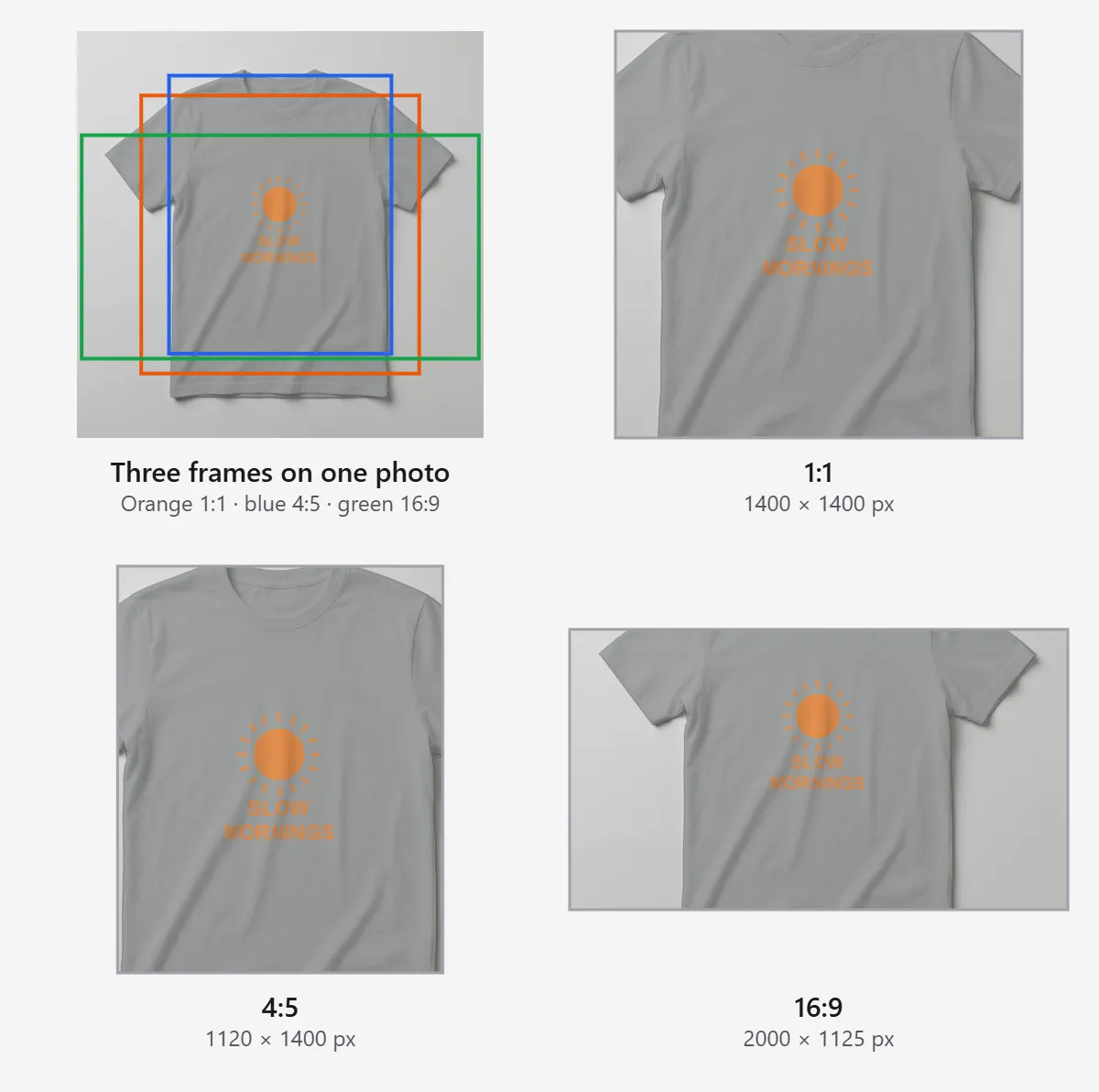
A site that receives the wrong shape crops it again on its own terms. Choose the shape here, decide what fills it, then set the pixel count with Resize image.
| Ratio | Shape | Who uses it | In this cropper |
|---|---|---|---|
| 1:1 | Square | Marketplace main photos, product grids, profile pictures | 1:1 |
| 4:5 | Tall portrait | Portrait feed posts; Instagram keeps photos between 1.91:1 and 4:5 ([Instagram Help Center](https://help.instagram.com/1631821640426723)) | 4:5 |
| 3:2 | Classic photo landscape | Editorial details, blog images, most camera photos | 3:2 |
| 16:9 | Widescreen | Website heroes, video thumbnails, slideshow banners | 16:9 |
| 9:16 | Full-screen vertical | Stories, Reels and short-video covers | No preset: use Free and type Width and Height in a 9:16 relation |
| 2:3 | Tall pin | Pinterest Pins; taller Pins may be cut off in feeds ([Pinterest product specs](https://help.pinterest.com/en/business/article/pinterest-product-specs)) | No preset: use Free with typed values |
| Wide banner | Long strip | Shop cover banners such as the Etsy shop banner | No preset: use Free and type the size your shop settings ask for |
These are frame shapes, not platform requirements; check each destination's own preview.
Trim white borders from a photo
Supplier photos and scans often arrive with uneven white margins that push the product off center. Today you trim them by hand: drag each side of the frame to where the margin ends, or read the edge position off the photo and type it into X, Y, Width and Height. To put an even margin back afterward, add a border to the image.
Trimming removes margin, not background; for a gray backdrop, the white background tool places the item on clean white.
Crop an image into a circle, square or heart
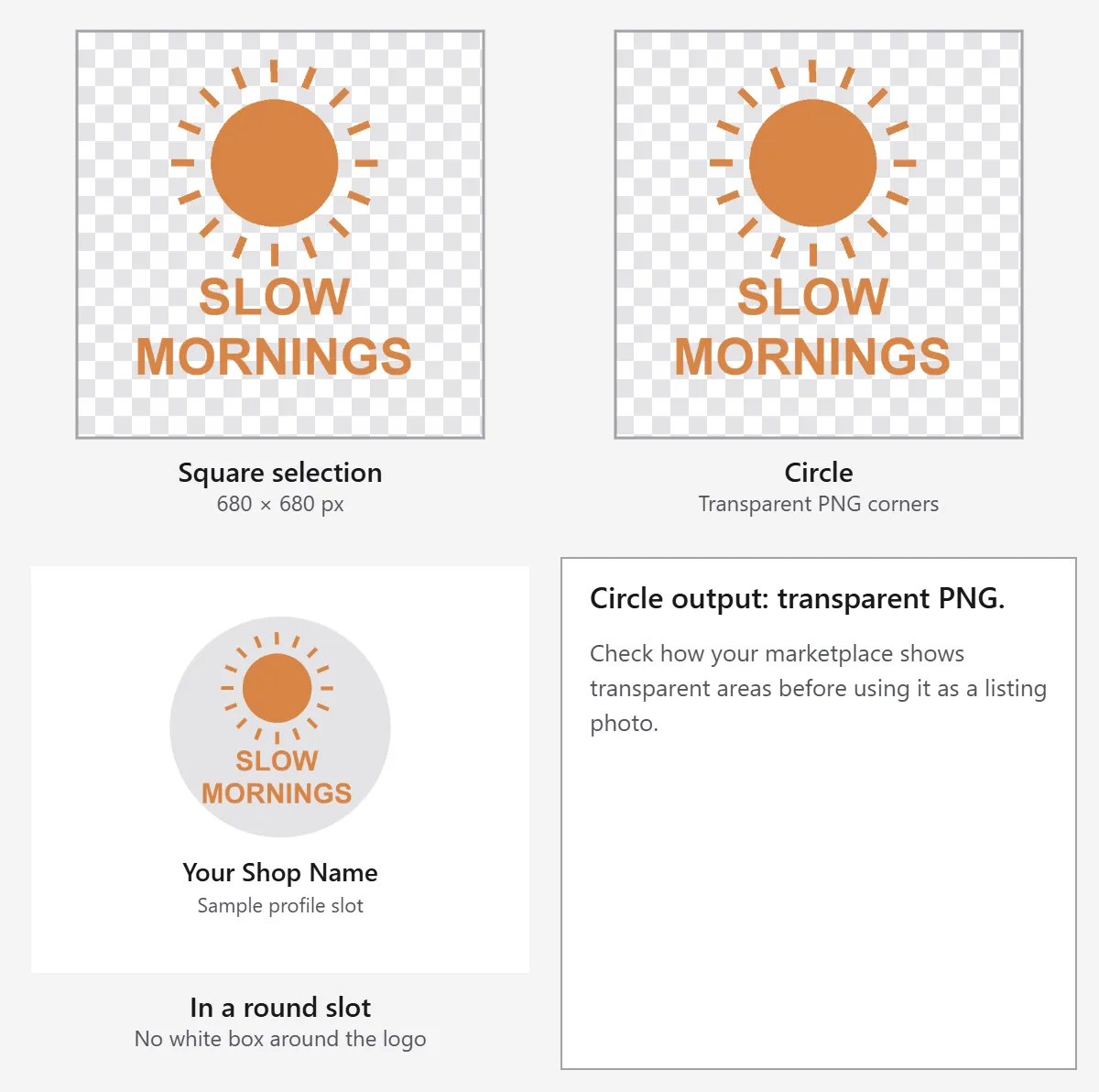
Shop icons, profile pictures and some avatar slots display as a circle, so a square logo loses the corners of its lettering. Choose Circle, place the round frame over the logo, and the preview shows it in a sample profile slot. The download is a transparent PNG with clear corners; check how your destination displays transparency before using one as a listing photo.
| Shape | Status | Output |
|---|---|---|
| Circle | Available: Circle | Transparent PNG |
| Square | Available: 1:1 | The format you pick under Download |
| Heart, star and other shapes | Not available | — |
A shape crop cuts the outline out of the photo. Keeping the whole rectangle and only softening its corners is a different job: rounded corners, not a crop.
Crop a screenshot of an order or review
Reviews, order confirmations and chat replies make good social proof, but a raw screenshot also carries the status bar, app chrome and often the buyer's details. Crop to the part you want to show.
Before posting, check that no buyer name, address, email, phone number or order number remains inside the selection. A crop only cuts away edges; it cannot blur text inside the area you keep, so if personal details sit between the lines you want, take a new screenshot that leaves them out. Blur and redact tools are not on this page.
Crop by exact pixels with X, Y, width and height
Dragging is quick; typed values repeat. X and Y set where the top-left corner of the crop starts on the original, measured in pixels from the left and top edges. Width and Height set the size of the area you keep. Press Apply crop and the frame jumps to those numbers. With a ratio chosen, typing the width fills in the height for that shape.
The Remaining detail line shows how many pixels the crop keeps. That number is the most this crop can hold: cropping never adds pixels, and a crop shown larger than its remaining detail looks soft. Note the four values and you can frame the next photo from the same shoot in the same place.
Crop artwork to a print shape
When artwork and print differ in shape, crop from the side with the least content, or keep the whole design and add space around it. Your printer's template decides the bleed and safe area; when it asks for bleed, keep the full artwork area rather than cropping to the finished edge. Print pixel counts belong to the resize step.
Remove distractions at the edge
A crop removes cables, table edges or stray hands at the border of a product photo; clutter behind the product needs another tool.
Crop, resize, extend or remove: which tool you need
| You want | Use |
|---|---|
| Keep part of the photo, or change its shape | Crop (this page) |
| Same picture, different pixel size | [Resize image](/tools/image-editor/resize-image) |
| Clutter behind the product gone | [Remove the background](/background-remover) |
| A small crop made larger and sharper | [AI image upscaler](/image-upscaler) |
| The same crop on many photos | Bulk image editor |
Copy a crop check
- Original: ______ × ______ px
- Ratio: Free / 1:1 / 4:5 / 3:2 / 16:9 / Circle
- Crop: X ______, Y ______, Width ______, Height ______ px
- Use: main photo / detail / icon / screenshot / print
- Edges checked (handles, straps, lettering): yes / no
- Screenshot: no buyer name, address or order number left: yes / no
FAQ
Set the crop frame, inspect the preview and apply it when the subject fits. The cropper shows the result before download.
No stretching. The kept pixels are saved as they are, so the output width and height match your selection unless you change Export size under Download.
Type the values in X, Y, Width and Height, then press Apply crop. X and Y are measured from the top-left corner of the original.
Choose Circle. The download is a transparent PNG, so the corners outside the circle stay clear.
No. Circle and square crops are available; heart and other shapes are not.
No. Drag each side of the frame to the edge of the margin.
Yes. The cropper saves a zipper, stitching or texture close-up as its own image, one crop at a time.
Yes, as an additional image. Keep the full product in the main image and use detail crops for features.
Pick 1:1, 4:5, 3:2 or 16:9, move the frame over the product, then download the crop for your product media.
Yes. Crop to frame the item, as long as the photo still accurately shows it.