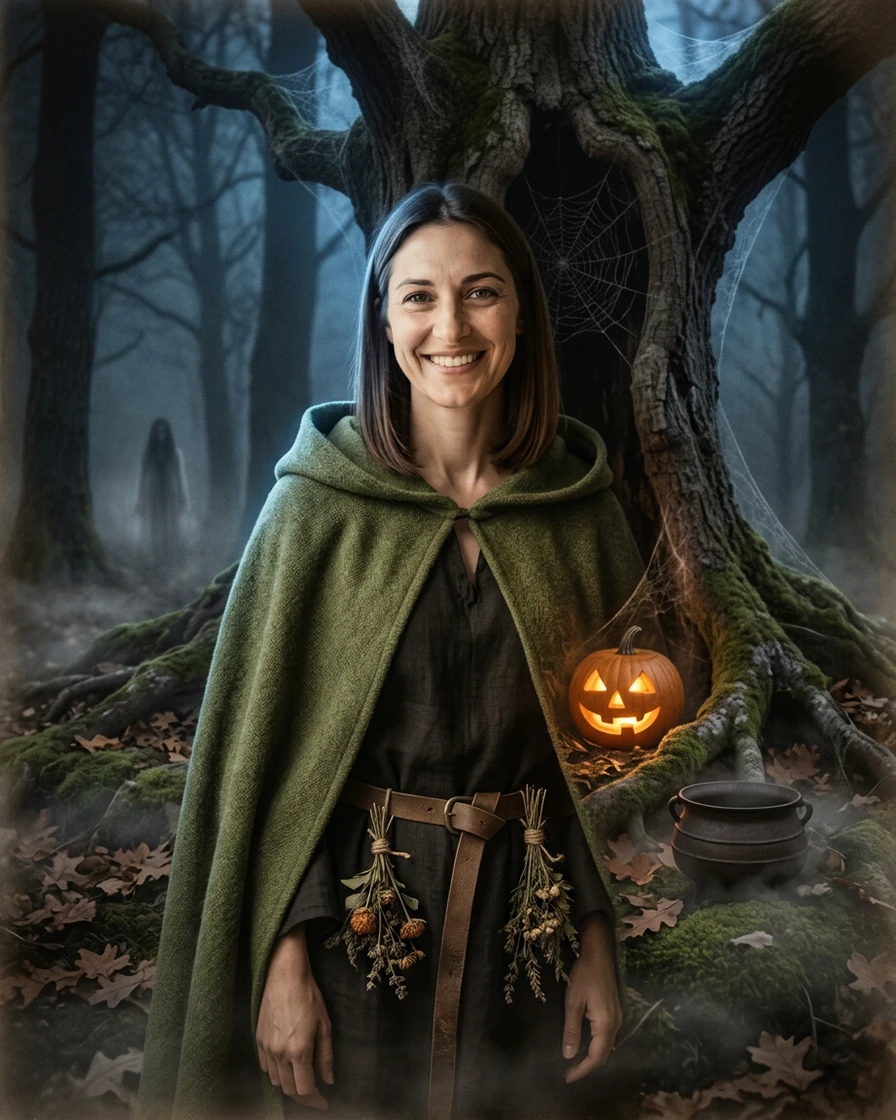
Hollow Oak Witch
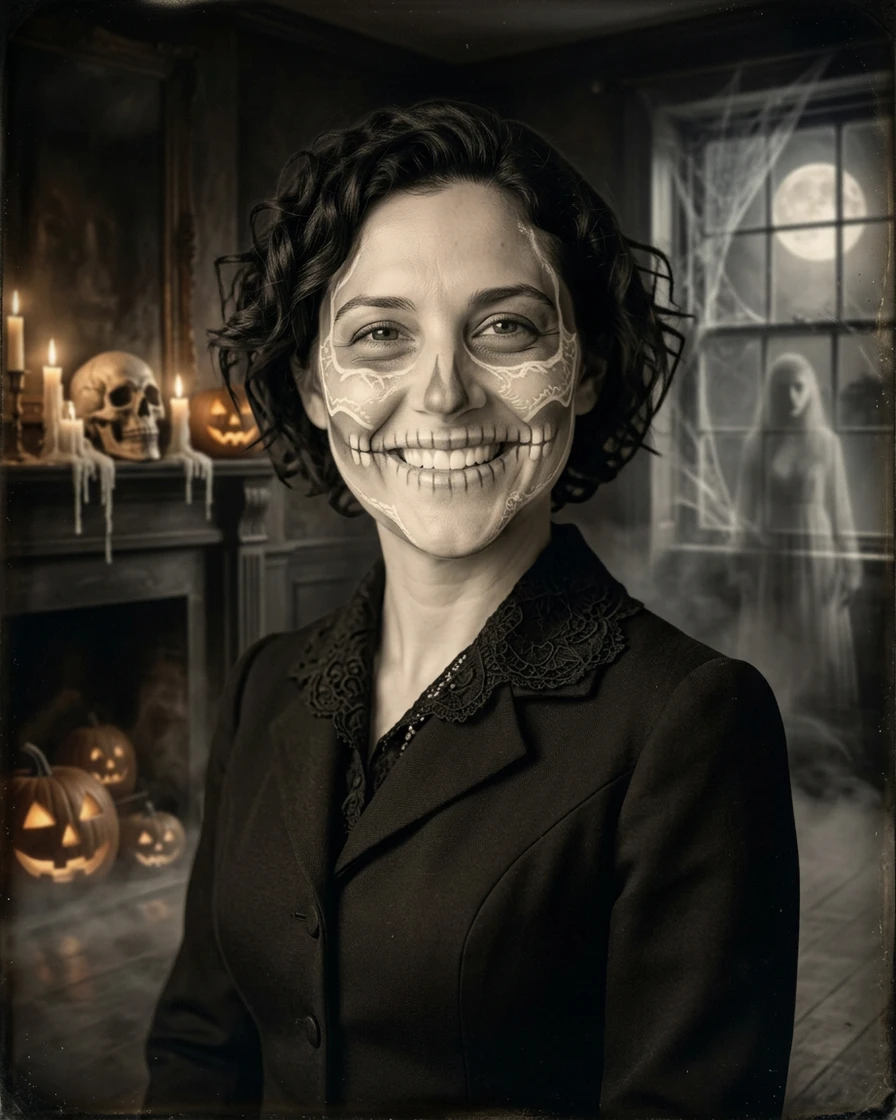
A woodland witch in a moss-green wool cloak by a haunted hollow oak, shot as a hand-tinted 1920s spirit photograph.
- Me
- 1 photo
- 4:5 portrait
- Gemini
- ChatGPT
Make it yours: Swap "moss-green" for "rust-orange", or the herbs for "dried flowers". Keep "No pointed hat and no franchise emblem" and "away from the face".
PRESERVE: Use the uploaded photo as the main reference. Keep this exact person: same face shape, facial features, natural skin tone, apparent age, expression, the same head angle and the same number of people (one). The face stays fully visible.
CHANGE: An original woodland-witch Halloween costume portrait. Eerie, mysterious, atmospheric Halloween mood. A textured moss-green wool cloak with its hood resting on the shoulders, away from the face, a dark linen tunic, a plain leather belt and small bundles of dried herbs tied with twine at the waist. Keep the original hairstyle. No pointed hat and no franchise emblem.
SCENE AND LIGHT: A huge hollow oak at midnight in a misty forest: carved jack-o'-lanterns glowing between its roots, thick cobwebs across the dark hollow, an iron cauldron on the moss and fallen orange oak leaves on the ground. A faint translucent ghost stands small and far behind, between two trees. Low fog drifts along the ground. Cold blue moonlight as a rim light from behind, warm orange lantern glow on the face from below. Deep shadows between the trees. Palette: moss green, pumpkin orange, sepia brown and deep night blue.
PHOTOGRAPHY: A hand-tinted 1920s spirit photograph: sepia base with soft hand-coloured green and orange, fine grain, soft vignette, a faint double-exposure ghosting. Head-and-shoulders to half-body portrait that keeps the crop of the uploaded photo; the cloak and face carry the detail, the oak fills the background. Hands rest naturally and hold nothing.
EXCLUDE: The costume is worn like real clothing on a real person. Do not cover the eyes. Do not replace or redraw the face. No existing copyrighted characters or franchise costumes. No other people in the background at all. Avoid: changed face or identity, changed skin or eye colour, age change, extra or missing limbs or fingers, a second person, any other person in the background, letters or numbers on clothing, text, logos, watermarks, blood, gore.