- Home
- Sticker maker
Sticker Maker
Shelfcanvas Sticker Maker is a browser editor for stickers, gift tags, name tags and thank-you cards.
Pick one of 115 sticker templates or upload a photo, add your words, and lay out a Letter or A4 sheet as a PDF with cut lines, a transparent PNG or a ZIP. Templates, text and layout need no account; photo background removal uses 1 credit.
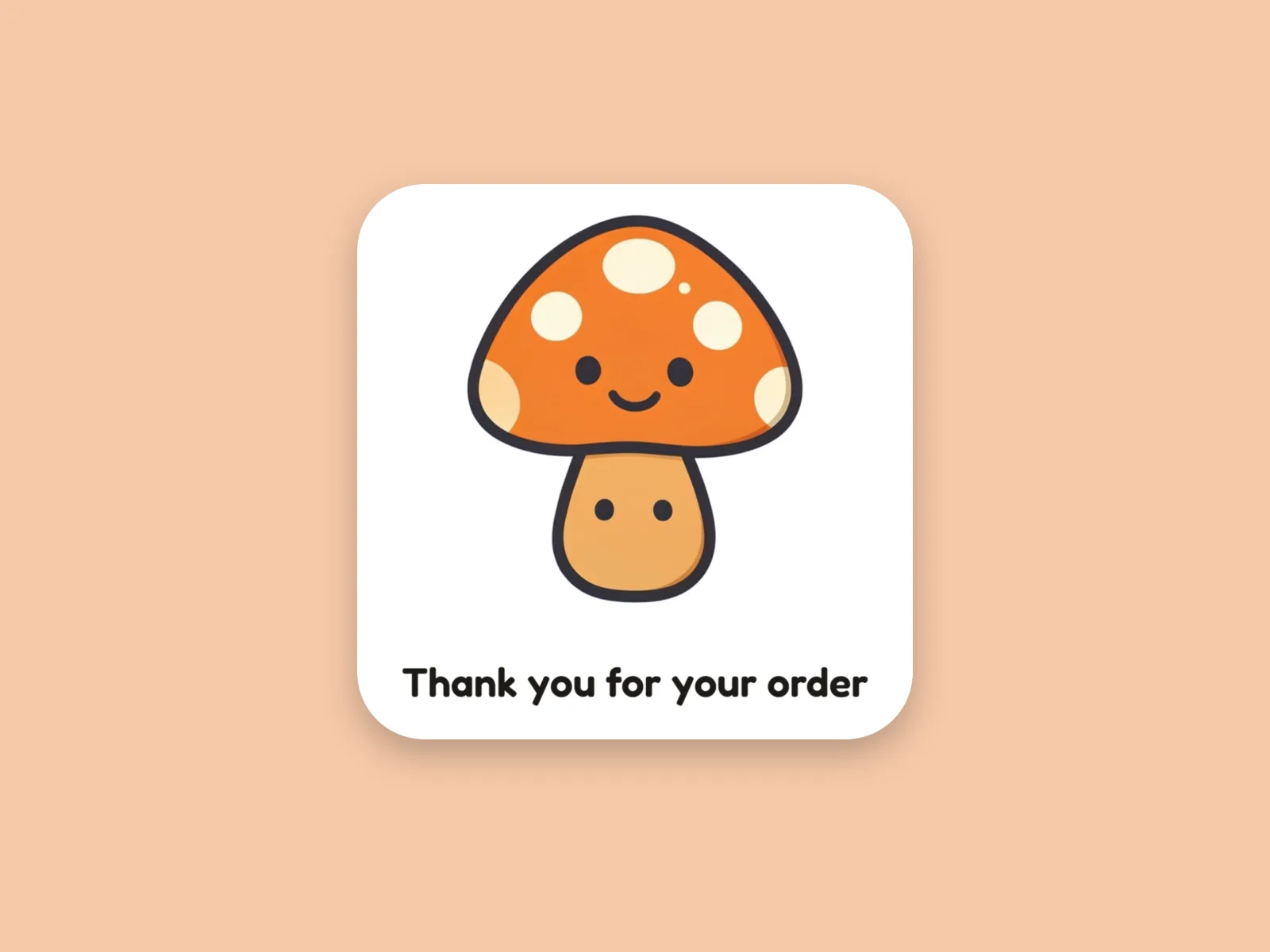
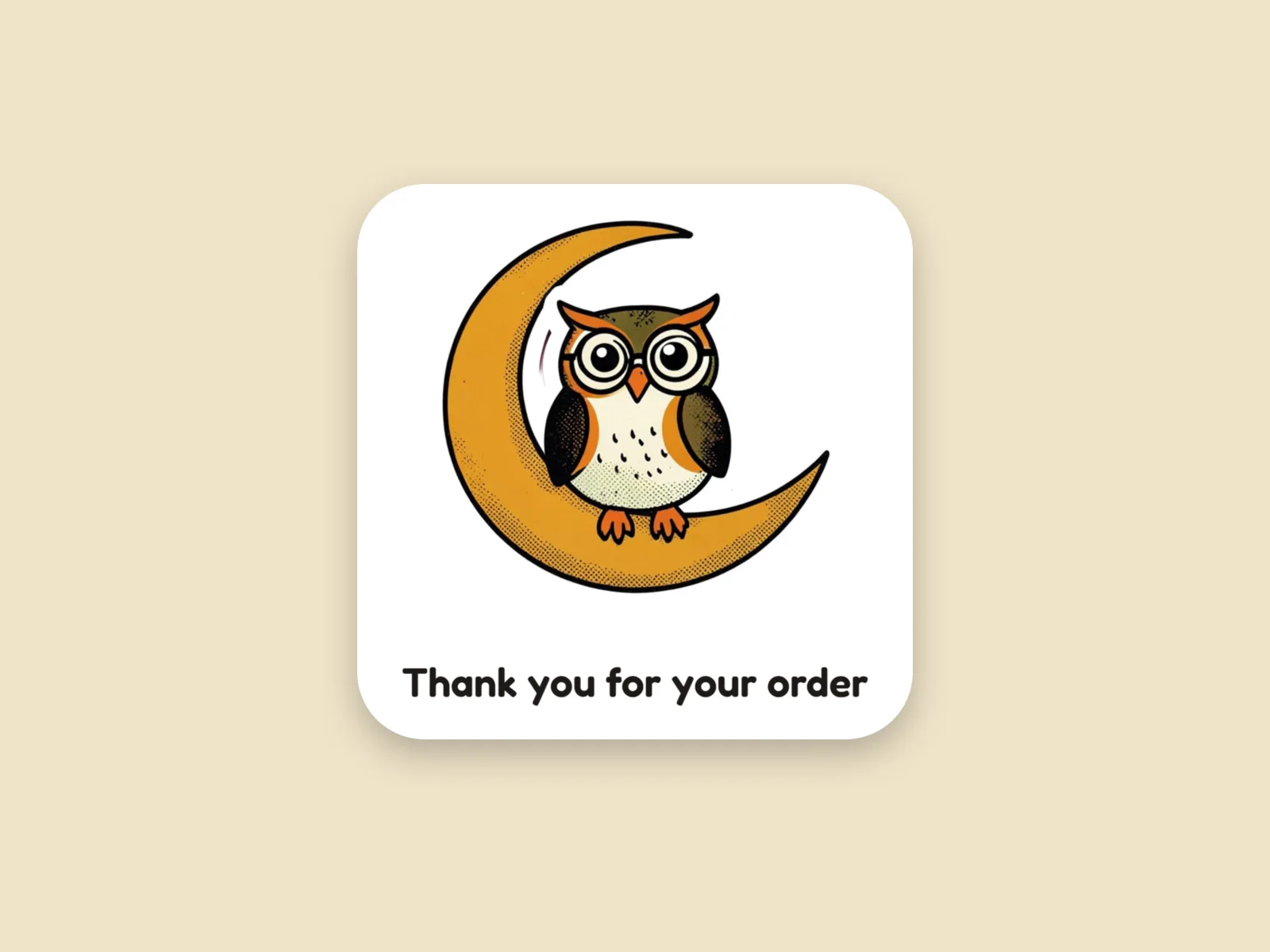
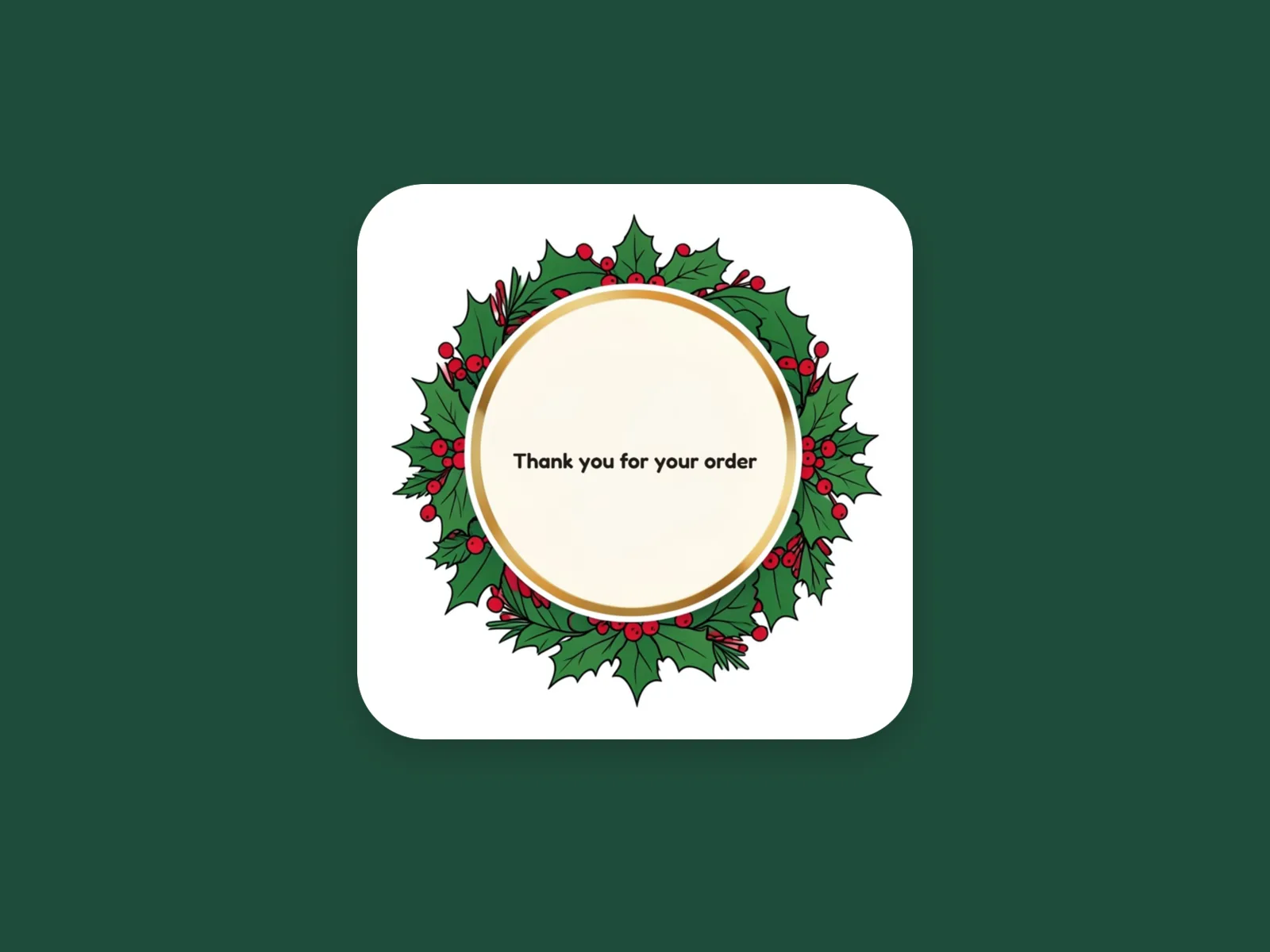
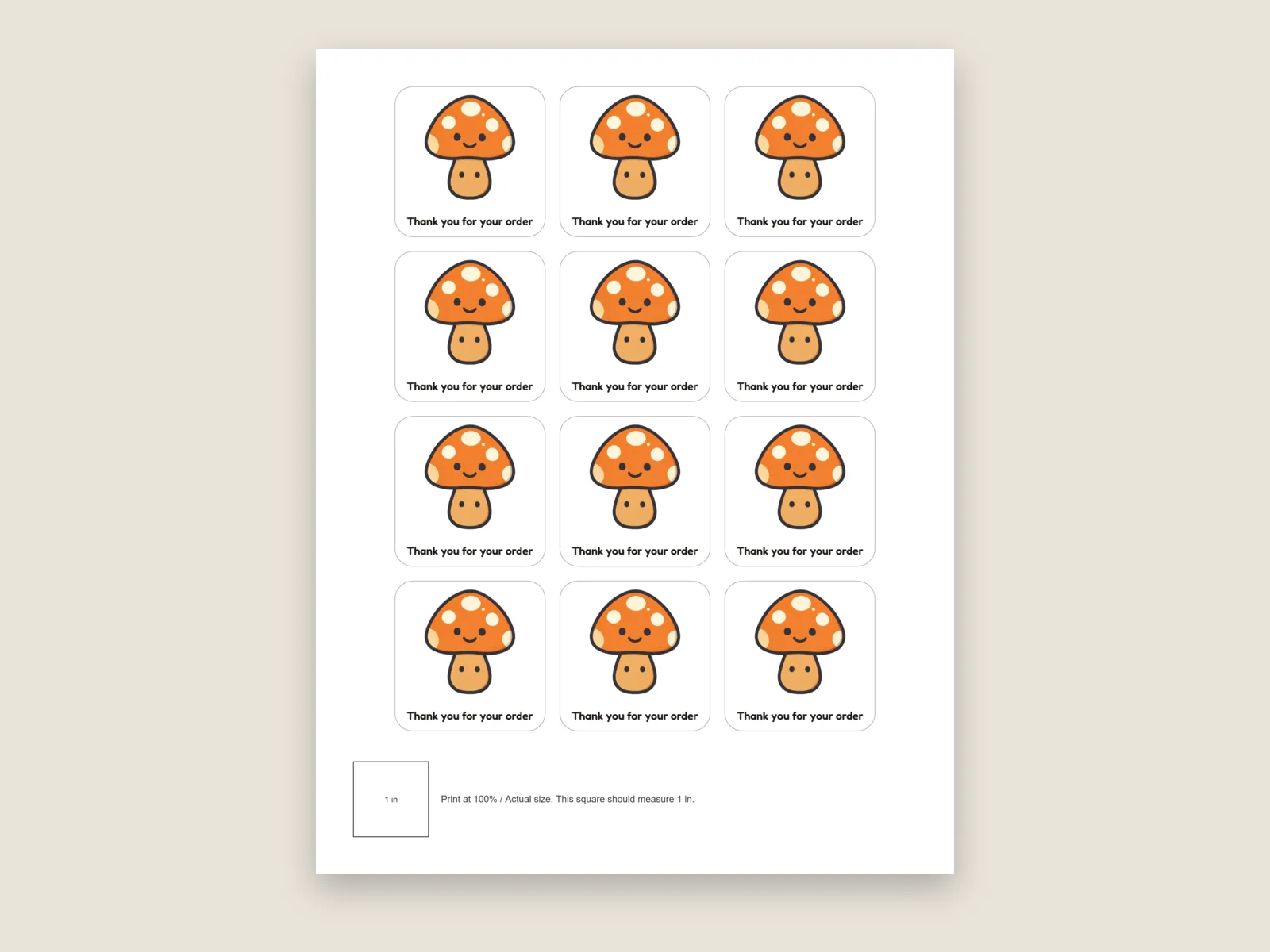
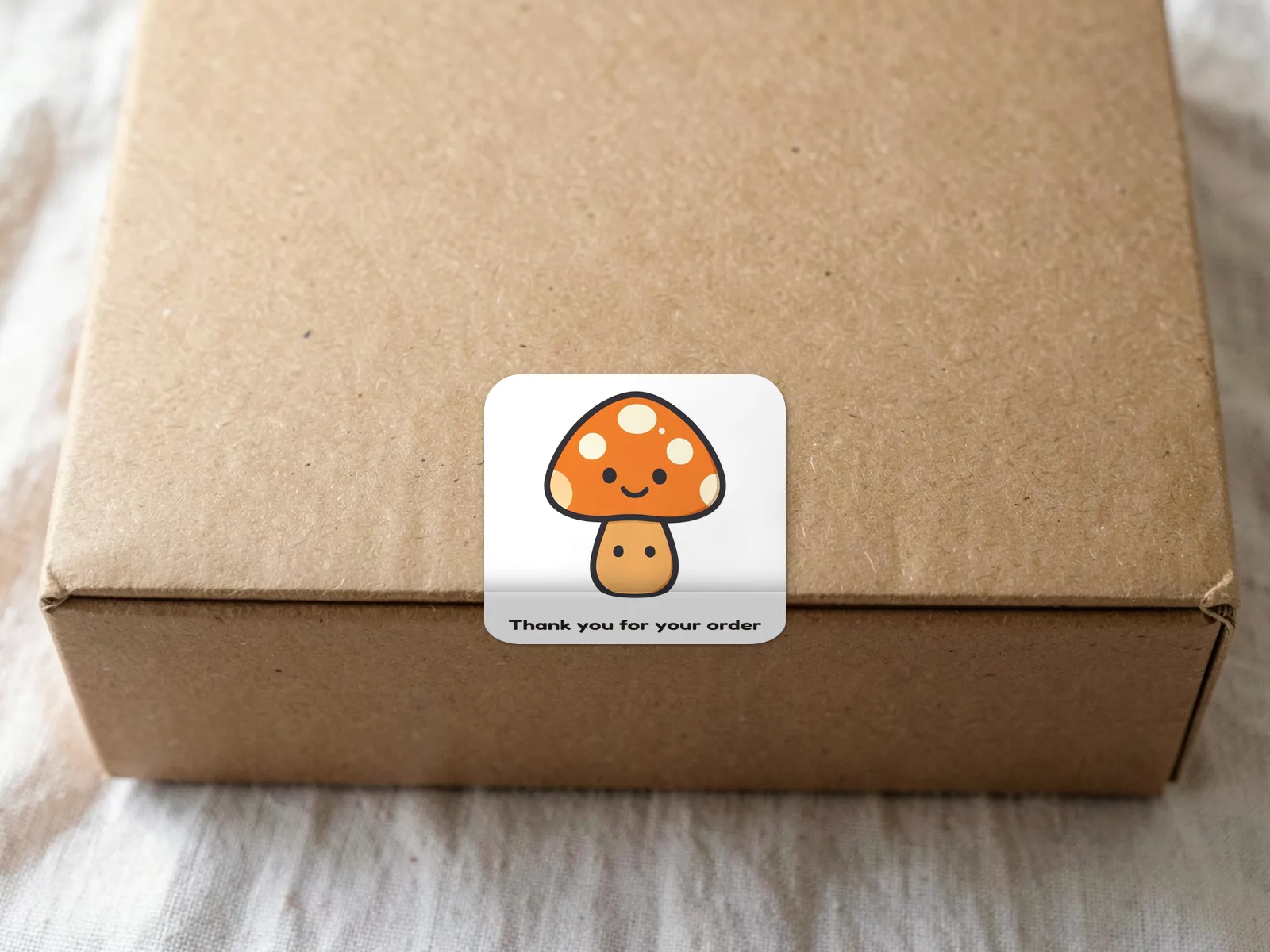
Choose a template or upload a photo to start.
- Gingerbread
- Snowman
- Tree
- Gift
- Reindeer
- Candy cane
- Cocoa
- Stocking
- Bauble
- Holly
- Mittens
- Penguin
- Gingerbread house
- Bell
- Gingerbread
- Snowman
- Tree
- Gift
- Reindeer
- Candy cane
- Stocking
- Bauble
- Holly
- Penguin
- Gingerbread house
- Bell
- Gingerbread
- Snowman
- Tree
- Gift
- Reindeer
- Candy cane
- Cocoa
- Stocking
- Bauble
- Holly
- Mittens
- Penguin
- Gingerbread house
- Bell
- Holly
- Pine
- Snowflakes
- Candy canes
- Ornaments
- Stars
- Gifts
- Gingerbread
- Mittens
- Poinsettia
- Pine cones
- Bells
- Ribbon
- Scalloped
- Trees
- Ghost
- Jack o lantern
- Bat
- Black cat
- Cauldron
- Candy
- Witch hat
- Spider
- Skull
- Moon
- Broom
- Potion bottle
- Mushroom
- Owl
- Jack o lantern
- Black cat
- Ghost
- Moon hat
- Bat
- Skeleton head
- Candle
- Cauldron
- Scarecrow
- Pumpkin bones
- Spider
- Moon bat
- Witch hat
- Candy
- Owl
- Ghost lantern
- Raven
- Skull candle
- Haunted house
- Coffin potion
- Black cat
- Moon
- Skeleton hand
- Spell book
- Pumpkin
- Spider web
- Candle
- Tree moon
- Wisp
- Pumpkins
- Bats
- Ghosts
- Candy
- Moons
- Web
- Cats
- Hats
- Potions
- Scalloped
- Pumpkin top
- Ribbon
- Skulls
- Treats
No photo handy? Try one of these
Click to open it in the editor- UploadOne photo with a clear subject.
- Cut it outRemove the background, or keep the whole photo; a white border is added.
- Print a sheetAdd text, fill a Letter or A4 page, download.

In short
To make your own stickers, press Choose a template or Upload a photo and type a caption under Add text. Your design fills the sheet automatically. Choose the size and paper, adjust Copies, or choose + Add another design. Shelfcanvas prints stickers at 2 in, 12 per Letter or A4 sheet, or at 1.25 in, 30 per sheet, and accepts any custom width from 0.5 to 7 in. Every 2 in or 1.25 in sticker sheet PDF has grey cut lines and a calibration square of 1 in on Letter or 25 mm on A4. Template stickers are 1024 × 1024 px transparent PNGs, which stay sharp in print up to 3.4 in wide at 300 ppi. Removing a photo's background runs on Shelfcanvas servers, uses 1 credit and needs a free account. Eligible new accounts receive up to 3 credits. Text, white borders, sheet layout and every download run in your browser.
How to make your own stickers
- 01
Pick what to make
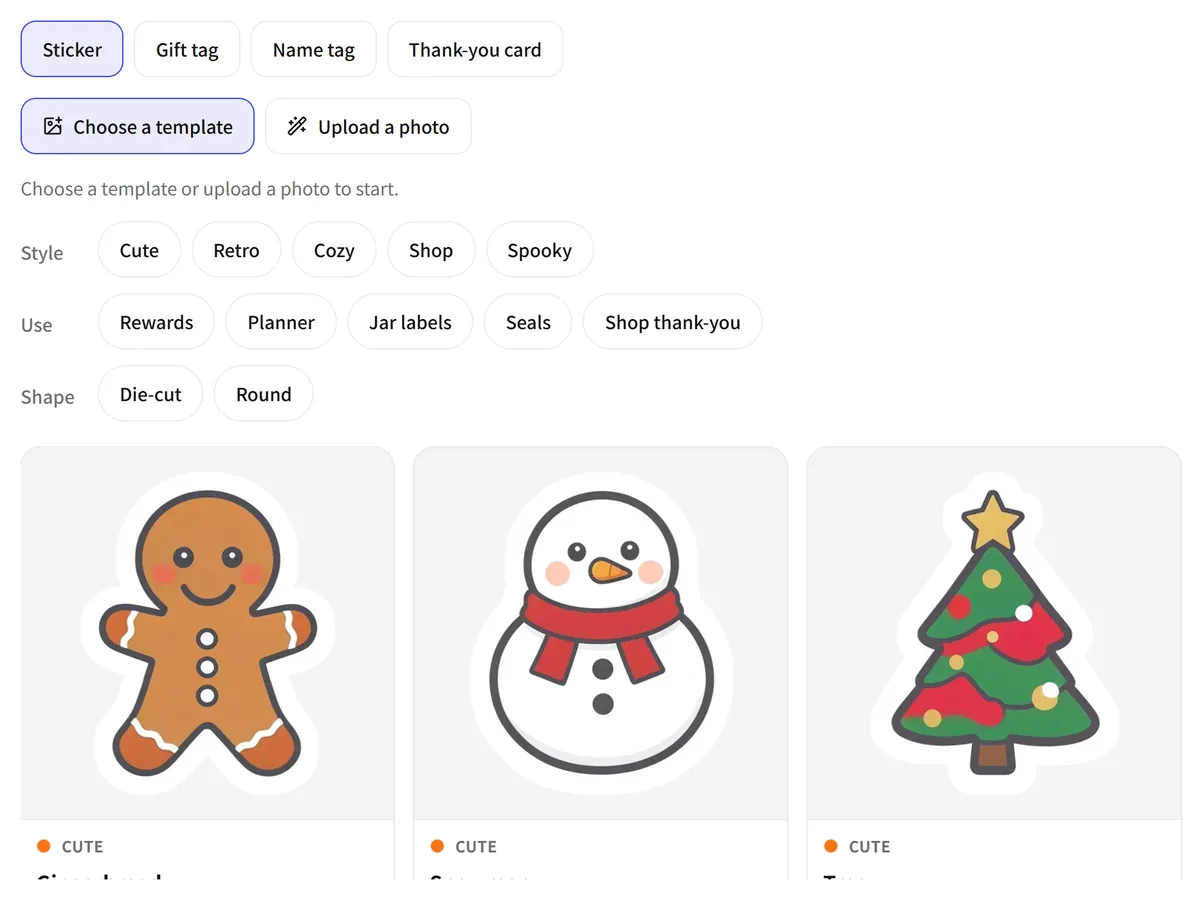
Under Make, choose Sticker, Gift tag, Name tag or Thank-you card, then press Choose a template or Upload a photo. For a photo, press Remove background to cut out the subject, or Use the whole photo to keep the full picture.
- 02
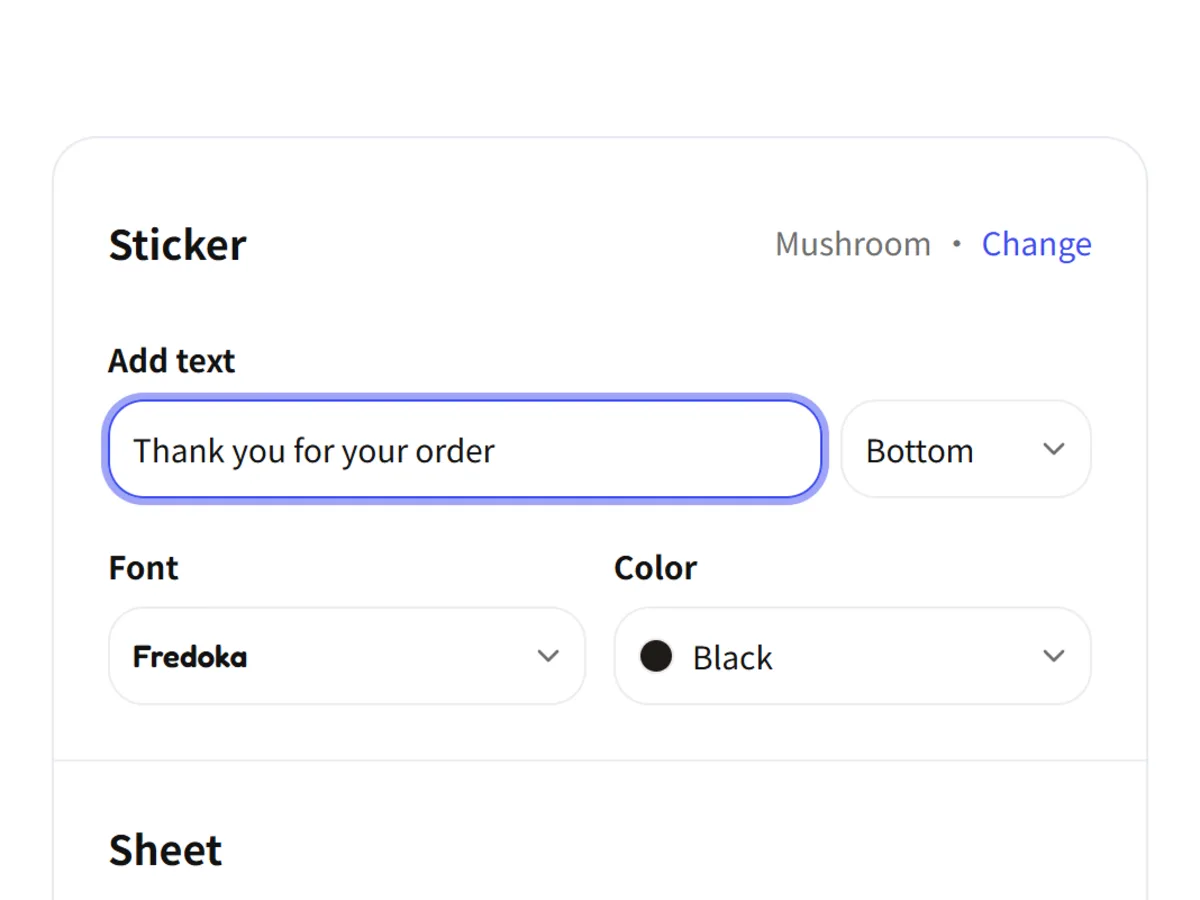
Add the message
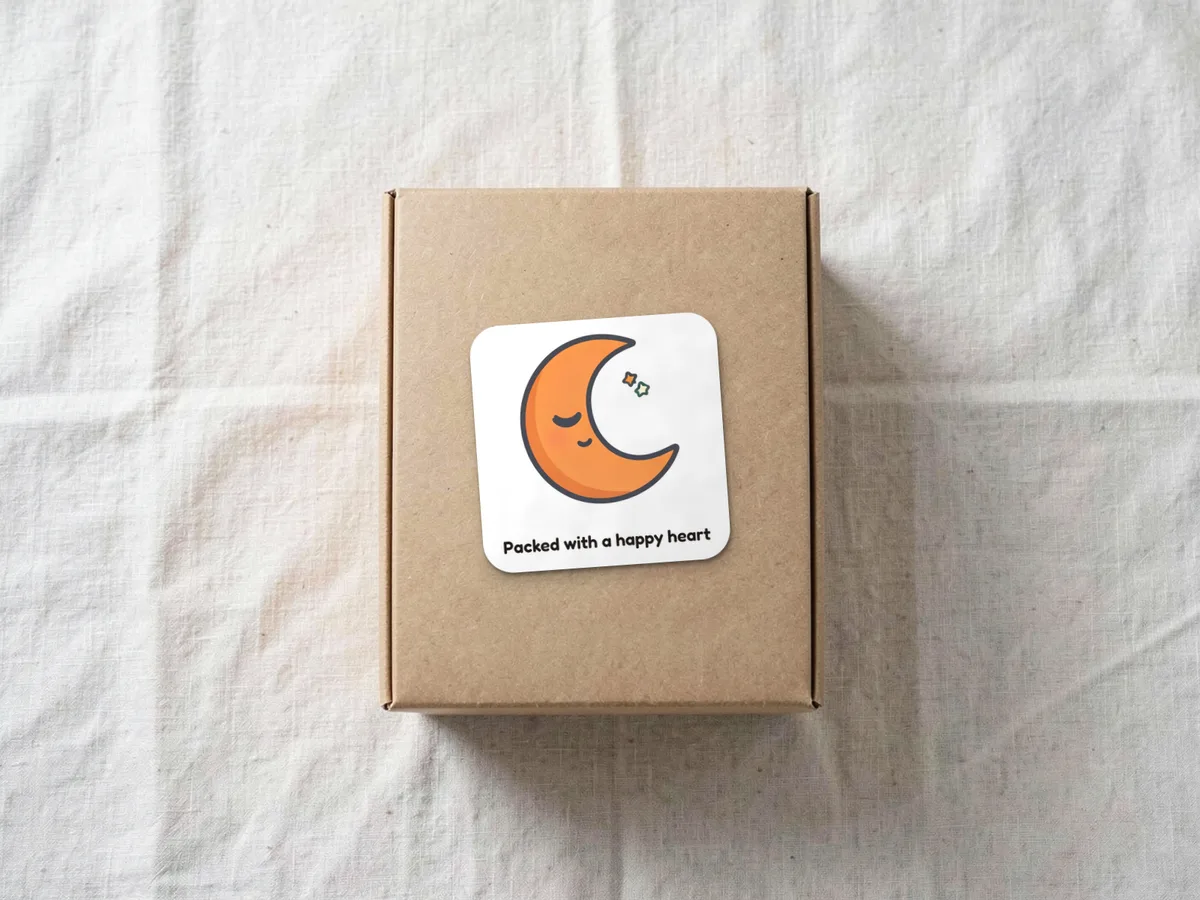
Under Add text, type a short line such as “Packed with a happy heart” into the Top, Middle or Bottom space, then pick a Font and a Text color.
- 03
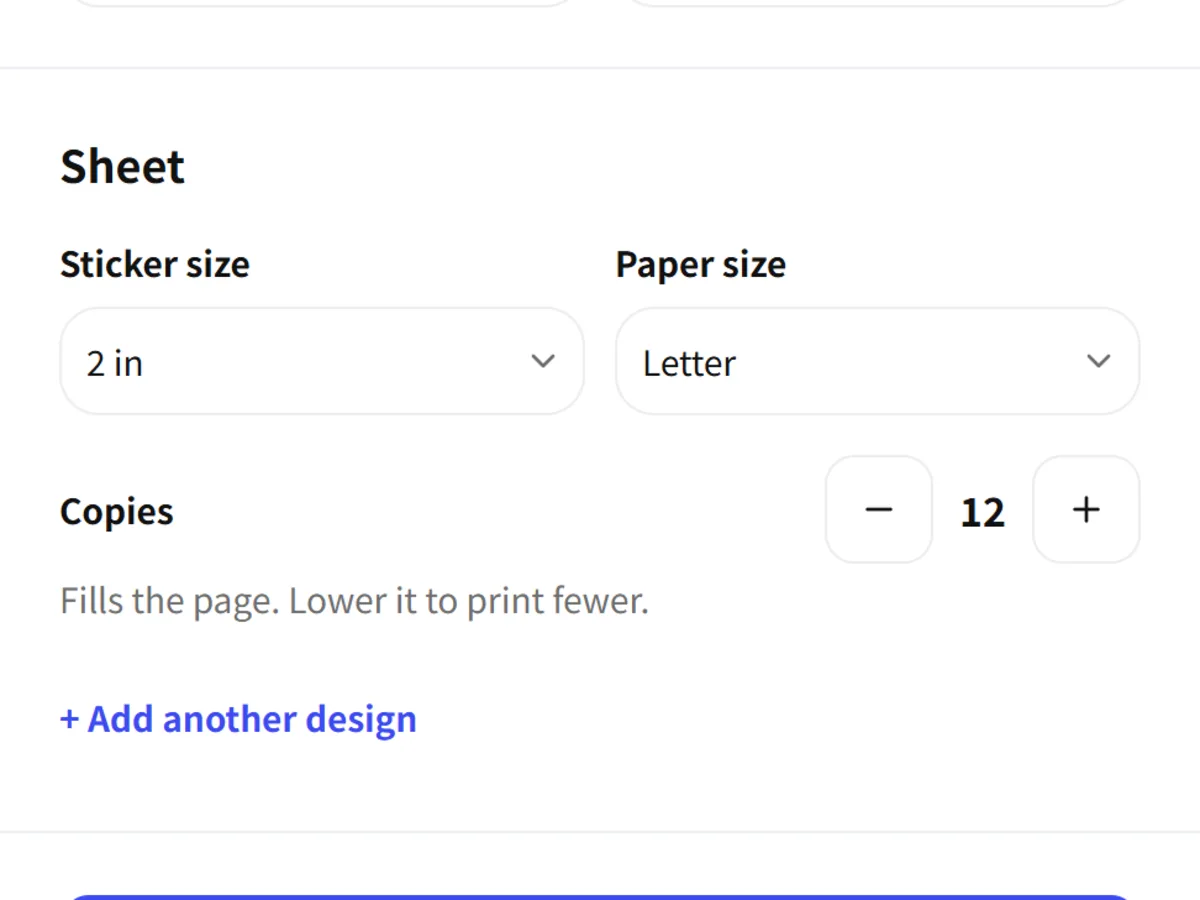
Set the white border
For a photo sticker, choose Thin, Medium or Thick under White border width and check that the white edge follows the whole outline.
- 04
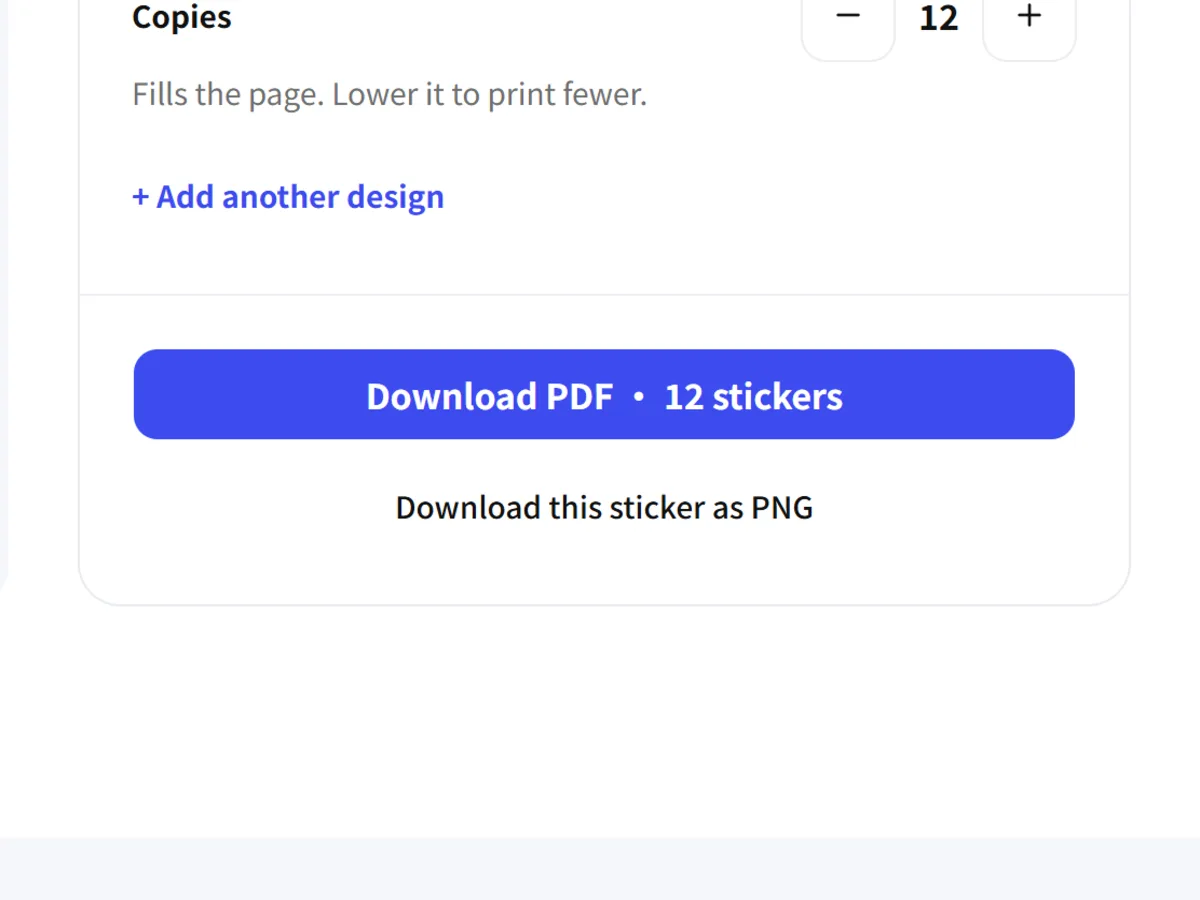
Build the sheet
Your design fills the sheet automatically. Choose the size and paper, adjust Copies, or choose + Add another design.
- 05
Download the files
Download the PDF to print. With one design, download its PNG; with multiple designs, choose All PNGs to download a ZIP.
Name tag sheets on Letter paper follow the Avery 5395 name badge layout, which Avery lists as 2-1/3 × 3-3/8 in labels, 8 per sheet. Last checked against Avery template 5395 on 2026-10-22. Thank-you cards can also print a pattern on the back as a second PDF page for long-edge duplex printing.
Ready-made Halloween designs for each product sit on the Halloween gift tags, Halloween name tags and Halloween thank-you cards pages; each one opens here for editing.
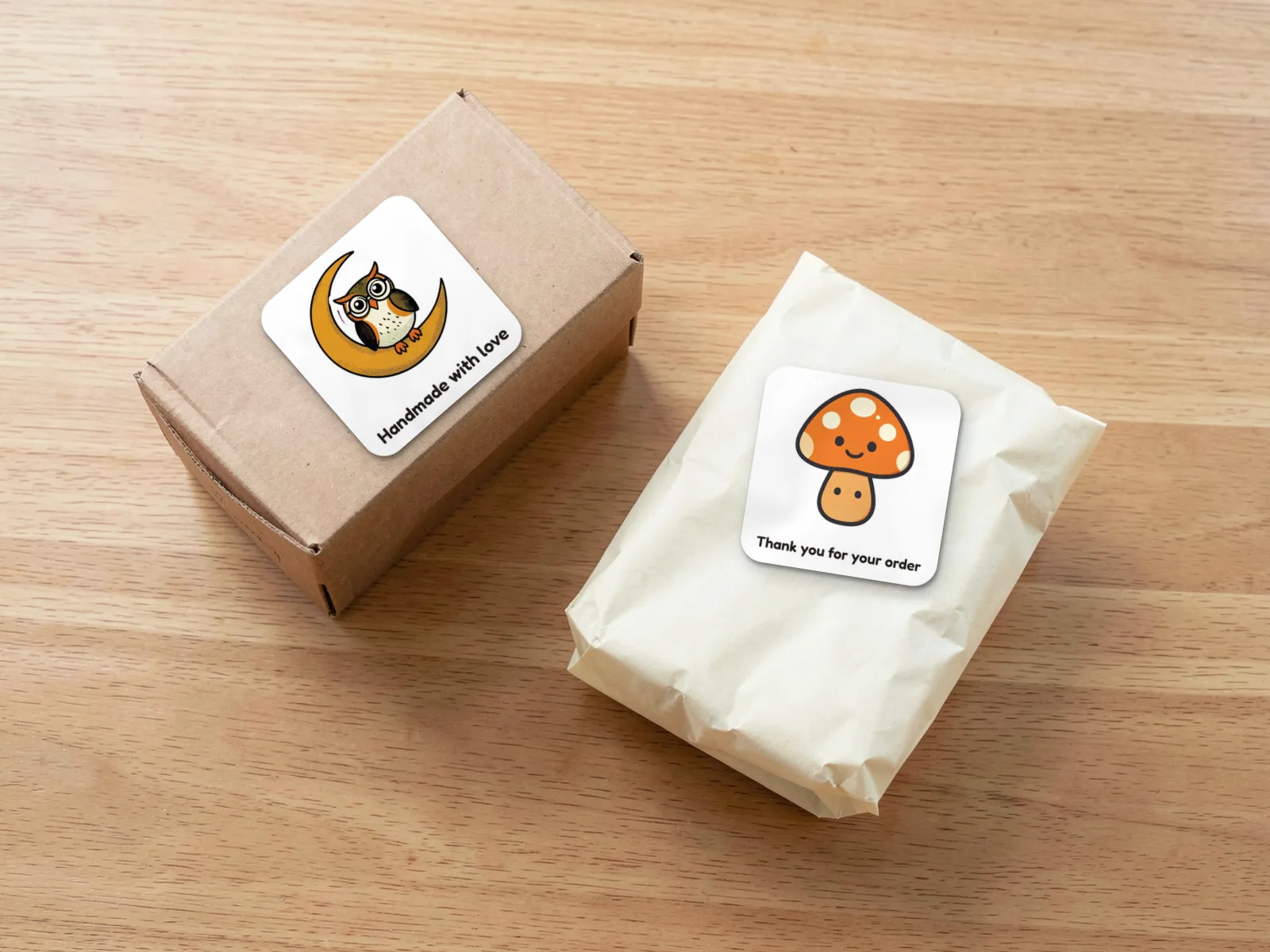
Packaging stickers for small shops
A packaging sticker works best when it has one clear job. A seal closes tissue paper; a product-picture sticker helps someone recognize what is inside; a decorative label gives a plain mailer a personal touch. Choose the job before adding more words.
For a handmade soap order, use a photo of the wrapped bar with a short caption such as “A little care, packed for you.” For a pottery parcel, pair the product cutout with “Made for everyday rituals.” These are original wording ideas you can adapt to your own shop.
Lay the paper test against the actual package. A design that looks balanced on screen may cover a fold or disappear against patterned wrapping. Give the main picture and caption their own breathing room. If the package is already busy, a simpler sticker can be easier to read.
For product information, add the exact words you need as text and proofread them in the exported file. Shelfcanvas Sticker Maker is a design editor; any information required for your particular product needs its own check before printing.
Thank-you stickers that sound like your shop
Thank-you stickers work when the message can be read while someone opens the order. Try “Packed with a happy heart,” “Thanks for choosing handmade,” or “Your order made our day.” A short line beside a clear illustration often says more than a miniature paragraph.
Use the photo option when the product itself should be the decoration. A cutout of a candle, woven basket or ceramic cup can make the sticker feel connected to the parcel. Use a template when you want a graphic starting point and your words to carry the personality.
Keep separate ideas separate. A thank-you seal can be warm and brief; a product label may need more detail. Put the paper test on a sample package, open it as a customer would, and check whether the message remains visible where the paper folds.
For seasonal packing, browse Halloween stickers and labels or Christmas stickers and labels. Use those pages for holiday-specific ideas and this sheet maker for a mix of everyday designs.
Reward stickers for teachers and learning at home
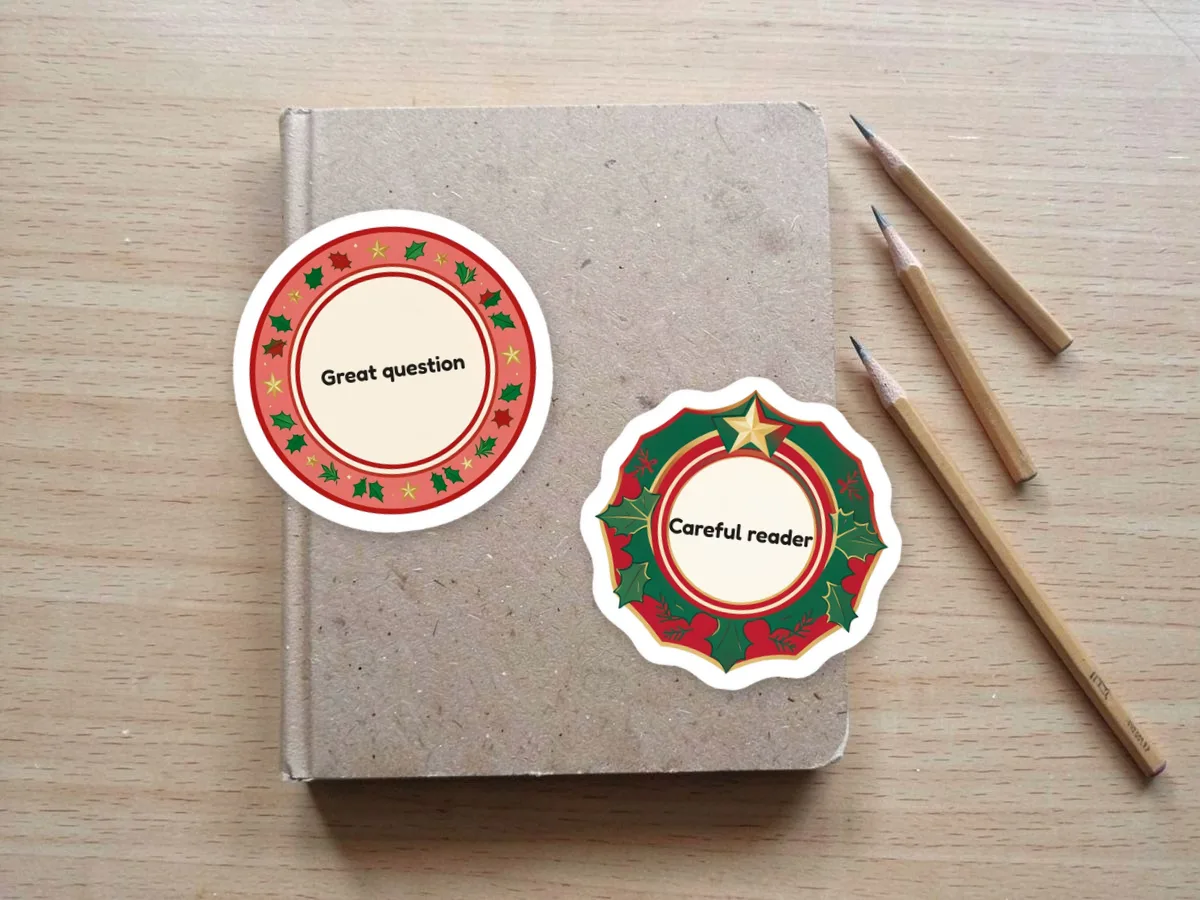
Reward stickers mean the most when the message names an action a learner can recognize. “You tried another way,” “Careful reader,” and “Great question” celebrate different kinds of progress. Add a friendly picture that still reads clearly when the sticker is small.
A sheet can support a classroom routine: reading practice, teamwork or finishing a tricky activity. Keep the words short enough to see at a glance, and choose picture shapes that are easy to cut. A detailed scene may look lovely on screen but lose its meaning when placed beside a notebook date.
For younger learners, use the same visual idea with different captions so the rewards feel related. For older students, try quieter wording such as “Thought it through” or “Strong revision.” Print a sample and read it from the distance at which a student will see it on their work.
The text tool lets you write your own phrases. Prepare the wording before arranging the sheet so you can spot typos without being distracted by the layout.
Party and holiday stickers for favors and keepsakes
Party stickers start with the place they will go: a favor bag, paper cup, invitation envelope or keepsake notebook. That surface helps you decide whether the design should be a small accent or the main decoration.
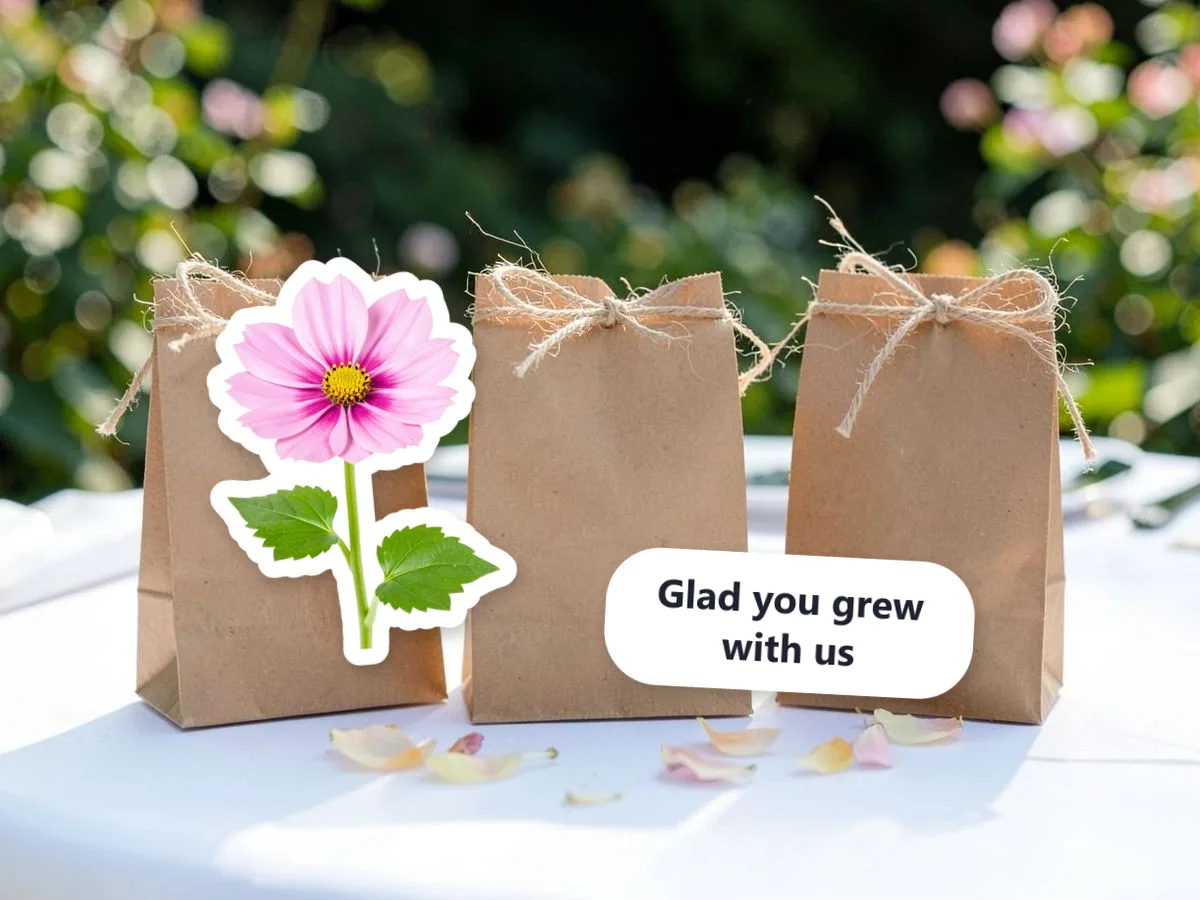
For a garden party, pair a photo of a flower with “Glad you grew with us.” For a cozy gathering, try a mug illustration and “Take a little warmth home.” Add a party name or guest name with the text tool when a personal message belongs on the design.
Group the sheet around a shared mood. Similar artwork and short phrases can connect the favors even when every sticker has different words. Leave clear space around names, especially when the lettering sits near a photo outline.
Use the Halloween sticker page for spooky seasonal ideas or the Christmas sticker page for festive packaging and gifts. You can also start with your own party photo and follow the photo-to-sticker guide.
Journal and planner stickers with room to write
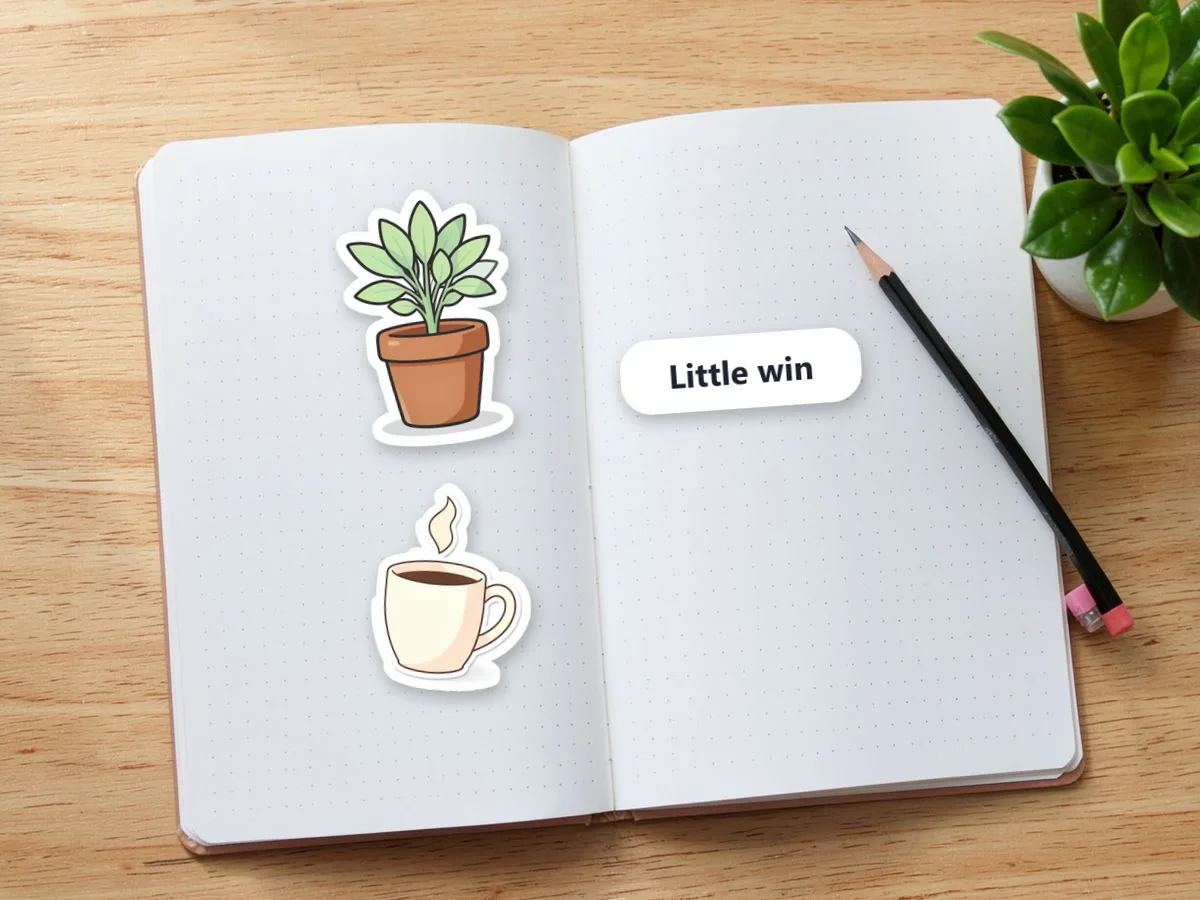
Journal stickers work best as a small visual vocabulary for the page: a plant for a quiet day, a mug for a catch-up, a pet photo for a happy memory. Add brief captions such as “Little win,” “Slow morning” or “Keep this moment.” The sticker should support the page rather than cover the space you need for writing.
Mix picture-led accents with useful words. A journal spread might need a decorative corner and a small reminder; they do not have to carry the same amount of detail. Arrange them with enough separation that you can cut out the piece you need without disturbing its neighbor.
For a travel journal, use your own photos of a favorite snack, flower or object. A clear subject makes a more recognizable cutout than a crowded scene. Keep the larger original photo elsewhere in the journal and use the sticker as a small visual reminder.
Before filling a sheet, place a paper sample on the real journal page. The 1.25 in size fits 30 stickers on one sheet and usually sits beside handwriting without covering it. That physical comparison is more useful than judging only from a zoomed screen preview.
Sticker sheet maker: arrange Letter or A4 paper
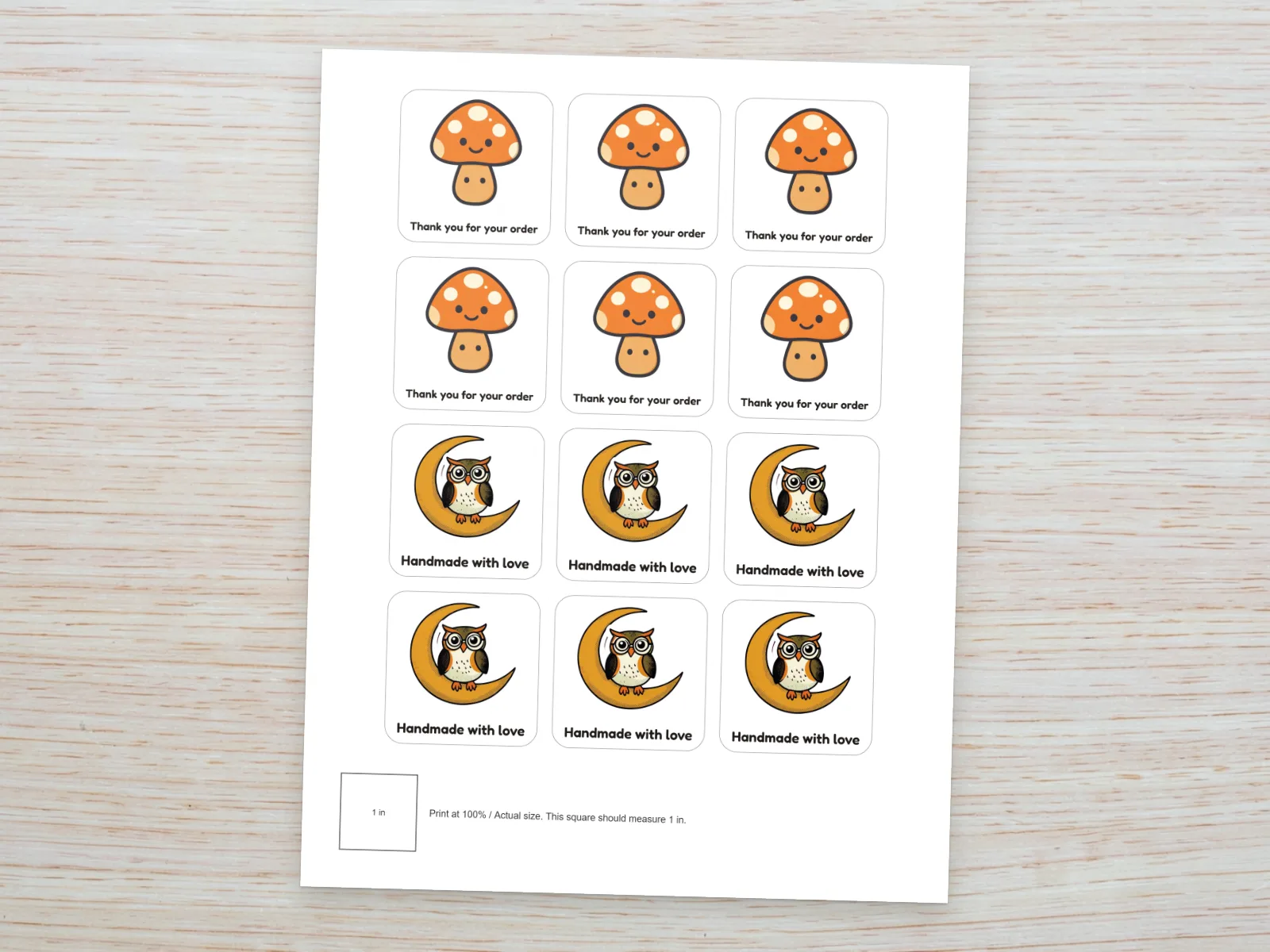
The sticker sheet maker lays out Letter or A4 paper for you: choose the paper you will load into your printer, and Shelfcanvas places each copy in rows. The layout adjusts to the product and paper size. Check the preview for spacing and cut guides. The preview heading shows how many stickers will print and whether the page is full.
If you ask for more copies than fit, the editor tells you how many fit on one sheet and asks you to lower Copies or pick a smaller Size. A custom sticker wider than 3.4 in gets a note that it will print below 300 ppi, so you can keep edges sharp.
The PDF draws a grey cut line around every design. Print at Actual Size. If the PDF includes a calibration square, measure it against the size printed inside it.
For hand cutting, simple outlines are easier to follow than a shape with many tiny branches. If a design is awkward to cut, simplify the picture choice or give the border more room before using the final paper.
Printable stickers as PDF, transparent PNG or ZIP
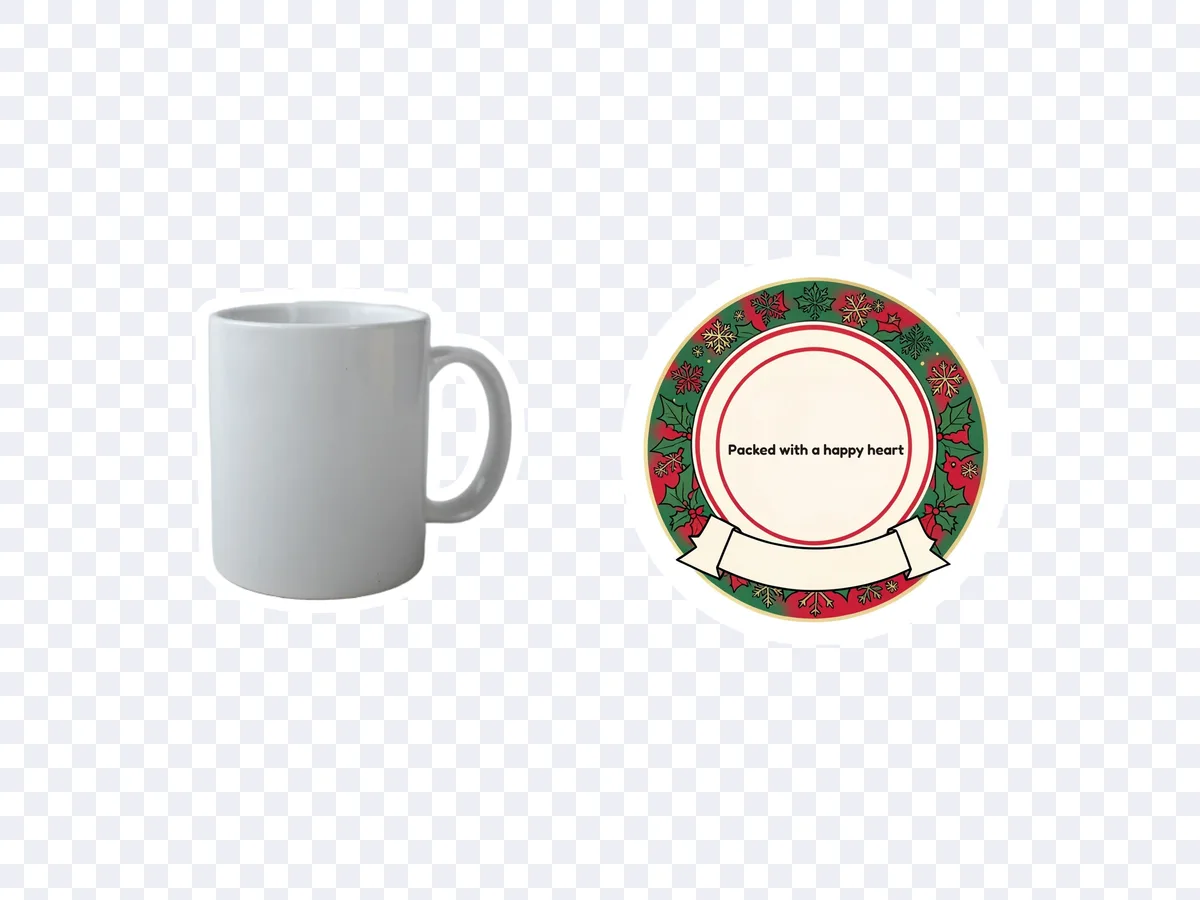
Printable stickers leave Shelfcanvas in three formats, all built in your browser without uploading your designs.
PDF keeps the sheet layout together for printing, with its cut lines, and asks your print dialog not to scale the page. Print at Actual Size. If the PDF includes a calibration square, measure it against the size printed inside it. Choose the PDF when you want to move from the editor to a home-printed sheet.
Transparent PNG is for one design: download its PNG, cut to its sticker shape with a transparent background; a template sticker is 1024 × 1024 px. A white sticker border is part of the artwork and stays visible around the subject.
ZIP is for multiple designs: choose All PNGs to download a ZIP with every design on the sheet as its own transparent PNG. Open the archive after saving and check the files before handing them to someone else or to a print shop.
Print a test sheet before using sticker paper
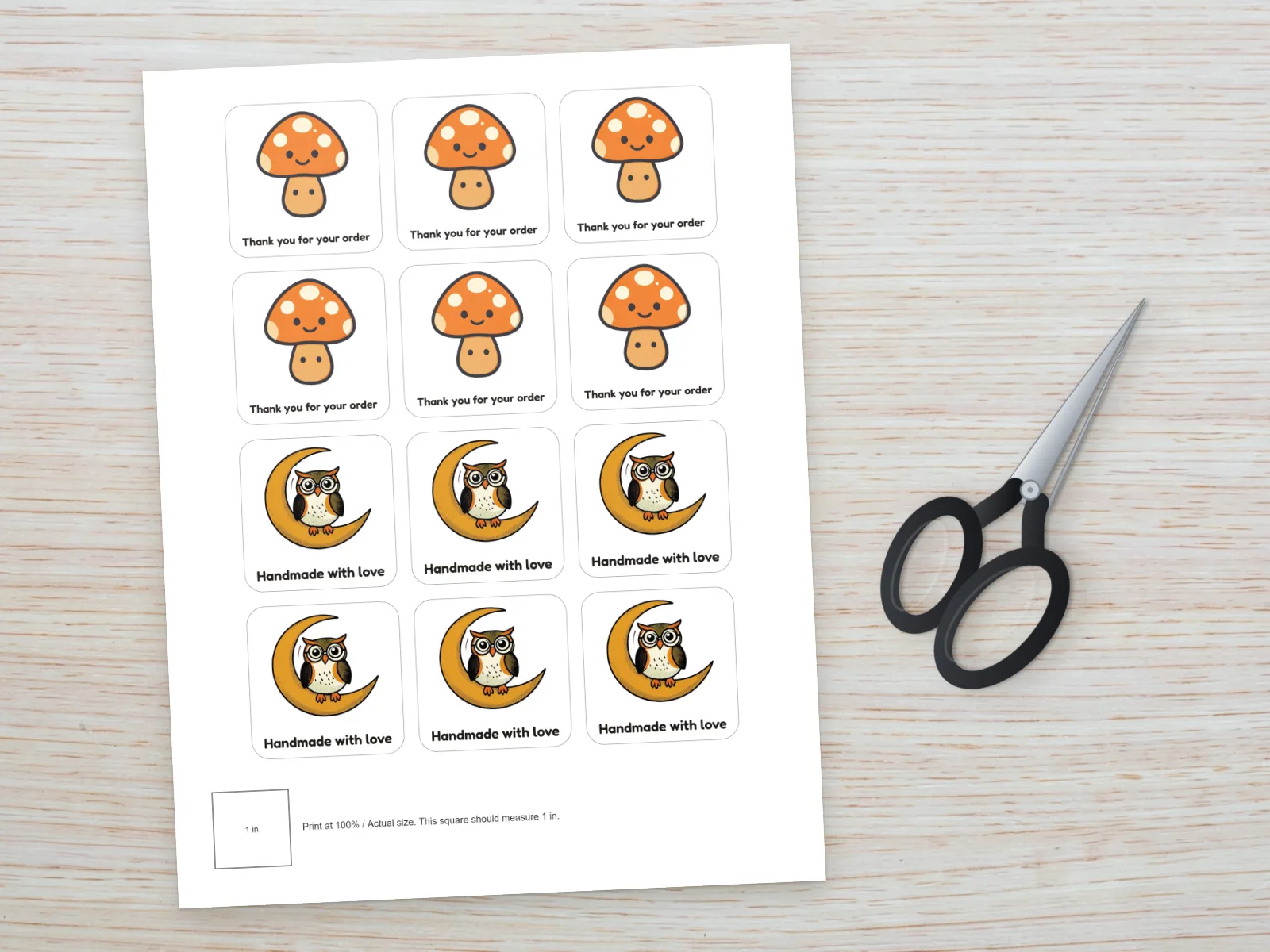
Print a test sheet on plain paper first, at Actual Size or 100%, so the layout keeps its intended scale. Avery recommends Actual Size and a plain-paper test in its printing tips, checked October 22, 2026.
Check the caption size, the space for cutting and, if the PDF includes one, the calibration square on the test sheet. If everything is smaller than expected, check the print dialog for Fit or another scaling setting. If only an edge is missing, check the printer's printable area and move the layout inward.
Use sticker stock labeled for your printer type. Avery's label-printing guide explains that inkjet and laser materials differ; checked October 22, 2026. Follow the stock and printer instructions for loading and media settings.
For Cricut, export PNG artwork and prepare it in Design Space. Print the machine-cut project through Design Space so it creates the marks used by its cutting workflow. See Cricut's Print Then Cut instructions, checked October 22, 2026.

















FAQ
Shelfcanvas, a browser-based sticker maker for printable sheets, lays out stickers, gift tags, name tags and thank-you cards on Letter or A4 paper. It offers 115 sticker templates, fits 12 stickers of 2 in or 30 of 1.25 in on one sheet, and downloads a PDF with cut lines, a transparent PNG or a ZIP. Templates, text and layout are free.
The Shelfcanvas sticker maker is free for templates, text, sheet layout and every download, and none of that needs an account. Only photo background removal uses credits: 1 credit per photo with a free account. Eligible new accounts receive up to 3 credits. Use the whole photo keeps the full picture with a white border at no cost.
No design skills are needed to make your own stickers on Shelfcanvas. Start from one of 115 ready templates in Cute, Retro, Spooky, Cozy or Shop styles, type your words into the Top, Middle or Bottom text space, and the sheet layout places every copy with cut lines for you.
Yes. Upload a JPG, PNG or WebP photo and press Remove background (1 credit, free account) or Use the whole photo, then the sticker maker adds a white border and your caption. For help choosing a picture and checking its edges, read photo to sticker; for a cutout without a sticker border, use the background remover.
photo to stickerbackground remover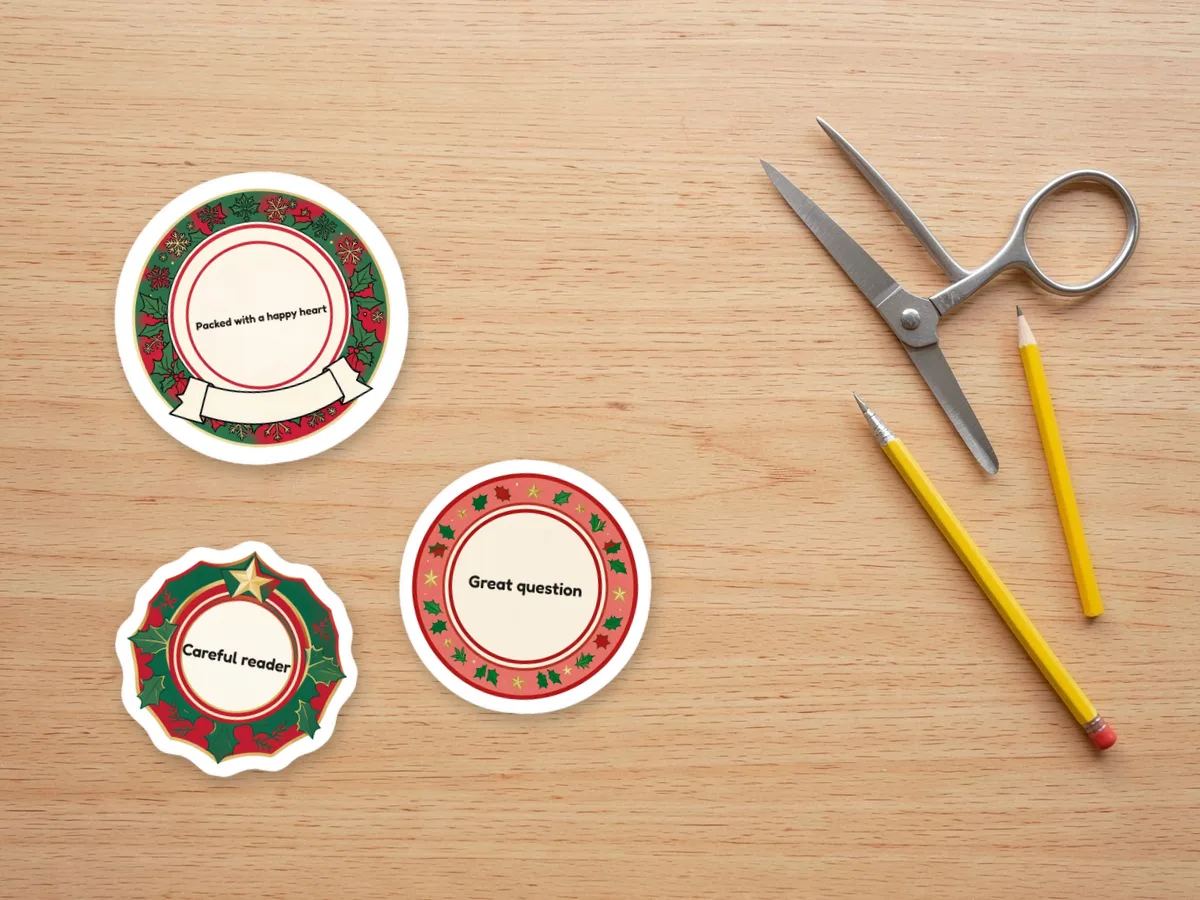
Stickers in the Shelfcanvas sticker maker print at 2 in by default, or at 1.25 in, or at any custom width from 0.5 to 7 in. Template artwork is 1024 × 1024 px, so stickers stay sharp at 300 ppi up to 3.4 in wide, and the editor warns you above that.
Yes. Add each design to the same sticker sheet in the editor, then check that every caption stays readable and that there is room to cut between neighboring stickers.
Name tag sheets on Letter paper line up with Avery 5395 name badge labels, 8 per sheet. Sticker, gift tag and thank-you card sheets are laid out for full-sheet sticker paper or card stock, with grey cut lines to follow by hand.
No. Water resistance of a printed sticker depends on the paper, ink, coating and finishing method. Check the materials you plan to use and test a sample for its intended use.
No. The sticker maker creates downloadable files. Print the PDF on suitable sticker stock or prepare the exported PNG artwork for the printing workflow you choose.
Choose a template or upload a photo to start.